
AI data analysis tools have made it possible to turn raw spreadsheets into clear insights without writing a single line of code. You no longer need to learn Python, SQL, or complex formulas to find trends, build charts, or answer business questions. Modern AI tools can read your data, suggest visualizations, and even explain what the numbers mean in plain English.
This article compares the best AI data analysis tools for non-technical users. You will learn what each tool does best, how much it costs, and which one fits your actual workflow. If you are new to AI tools, start with our guide on how to start using AI as a complete beginner first.
Key Takeaways
- The best AI data analysis tools let you upload a spreadsheet and ask questions in plain English.
- Julius AI excels at turning raw data into charts, summaries, and predictive insights.
- ChatCSV is the fastest way to query CSV files without opening a spreadsheet program.
- Rows.com combines a spreadsheet interface with built-in AI formulas and integrations.
- Most tools offer free tiers with row or query limits. Test before you upgrade.
- Data privacy matters. Avoid uploading sensitive customer or financial data to cloud AI tools without checking their security policies.
What AI Data Analysis Tools Actually Do
An AI data analysis tool reads structured data, such as spreadsheets or CSV files, and helps you understand it faster. Instead of manually sorting columns, writing formulas, or building pivot tables, you describe what you want in natural language. The AI returns charts, summaries, or answers.
Natural language querying is the biggest shift. You can ask questions like “What was my best-selling product last quarter?” or “Show me the trend in website traffic over the last six months.” The AI parses your data, runs the analysis, and presents the result.
Automated visualization is another core feature. Many tools suggest the right chart type based on the data shape. Some even generate interactive dashboards that update when you upload new files.
Predictive insights go a step further. Advanced tools can forecast future trends based on historical data. For example, you might predict next month’s revenue or identify which customers are most likely to churn.
Key takeaway: AI data analysis tools replace manual spreadsheet work with conversational queries and automatic visualizations. You bring the data and the question. The tool brings the analysis.
For a broader look at AI tools for everyday tasks, read our guide on top AI tools for everyday work and how they are being used.
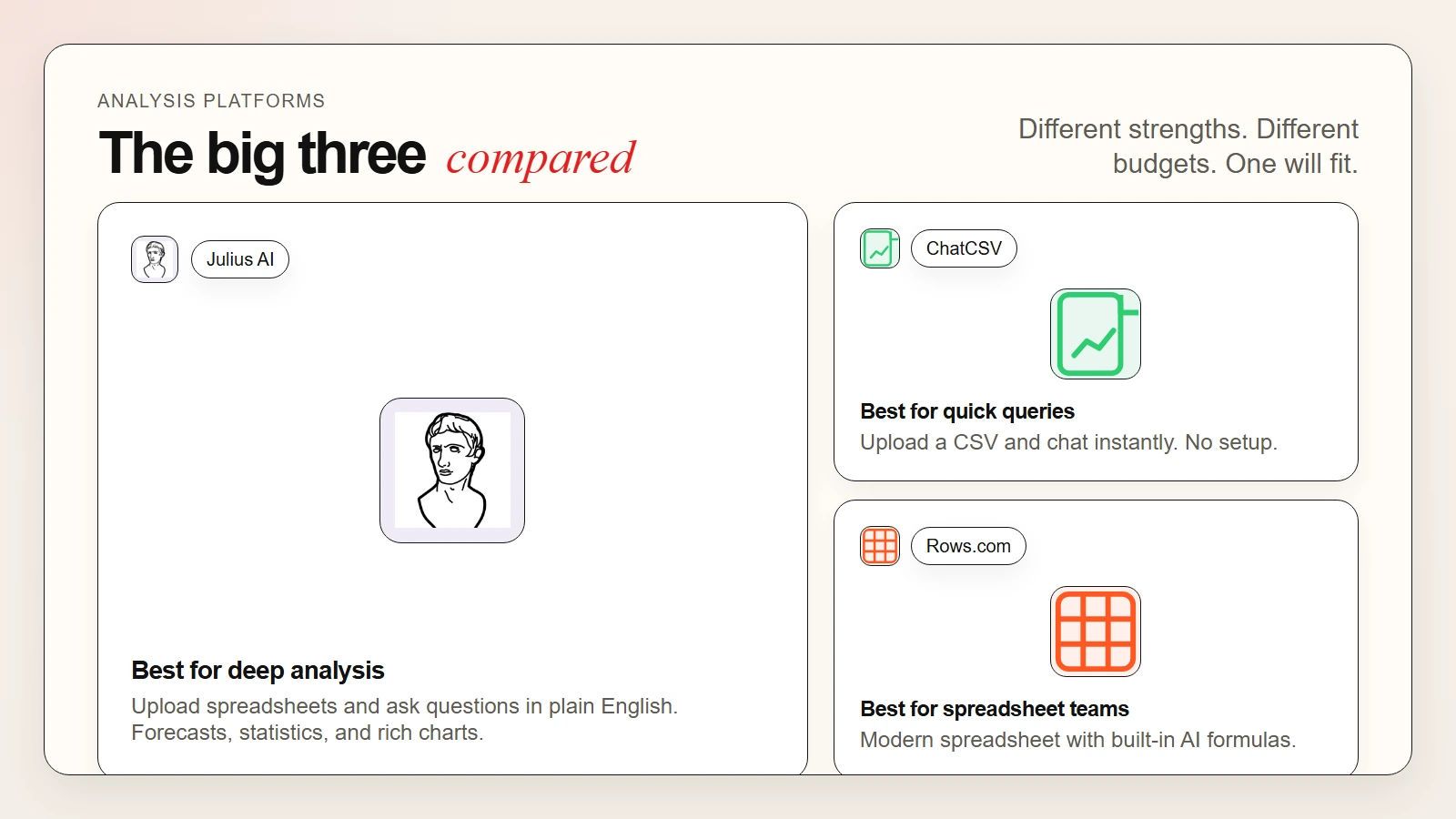 Caption: Julius AI builds charts and forecasts. ChatCSV answers CSV questions instantly. Rows.com adds AI formulas to a modern spreadsheet.
The Best AI Data Analysis Tools in 2026
These are the leading tools for non-technical users who want to analyze data without coding. Each one takes a different approach, so the right choice depends on how you work with data and what you need to learn from it.
1. Julius AI
Julius AI is an AI-powered data analyst that lets you upload spreadsheets and ask questions in plain English. It can generate charts, run statistical tests, build forecasting models, and even write short summaries of what the data shows.
What you get:
- Natural language queries against uploaded CSV, Excel, or JSON files
- Automatic chart and graph generation with export options
- Statistical analysis including regression, correlation, and significance testing
- Predictive forecasting for time-series data
- Data cleaning suggestions and outlier detection
- Shareable reports and dashboards
Where it falls short:
- Free tier is limited to a small number of queries per month
- Large datasets can hit processing limits on lower plans
- Requires uploading data to the cloud, which raises privacy concerns
- Advanced statistical features may still need some interpretation
Best for: Marketers, founders, and analysts who want fast insights from spreadsheets without building dashboards or learning statistics.
2. ChatCSV
ChatCSV is a simple, focused tool that lets you upload a CSV file and chat with it. You ask questions, and the AI queries your data and returns answers, tables, or charts.
What you get:
- Instant CSV upload and conversational querying
- Automatic chart generation based on your questions
- No setup or configuration required
- Fast response times for small to medium datasets
- Simple sharing via link
Where it falls short:
- Only works with CSV files, not Excel or other formats
- Fewer advanced analysis features than Julius AI
- Limited customization of charts and outputs
- Not ideal for ongoing dashboards or automated reports
Best for: Quick one-off analysis, journalists, researchers, and anyone who needs fast answers from a CSV file without opening Excel.
3. Rows.com
Rows.com is a modern spreadsheet with built-in AI. It looks and feels like Excel or Google Sheets, but every cell can call AI functions, APIs, and data integrations. You can pull live data from the web, analyze it with AI formulas, and share interactive reports.
What you get:
- AI formulas inside spreadsheet cells, such as summarizing text or analyzing sentiment
- Built-in data integrations with CRMs, analytics platforms, and databases
- Modern spreadsheet interface with real-time collaboration
- Interactive embeddable reports and dashboards
- API access for power users who want to extend functionality
Where it falls short:
- Steeper learning curve than simple chat-based tools
- Free tier has row and integration limits
- Some advanced integrations require paid plans
- Not as fast as Julius AI or ChatCSV for one-off uploads
Best for: Teams who live in spreadsheets and want AI-powered formulas, live data connections, and shareable dashboards without leaving a familiar interface.
For a deeper look at AI tools for coding and technical work, see our guide on best free AI tools and top AI tools for writing, research, coding, and data analysis.
4. Other Notable Tools
Microsoft Copilot in Excel brings AI directly into the world’s most popular spreadsheet. You can ask Copilot to summarize data, highlight trends, or suggest formulas. It is ideal if you already use Microsoft 365 and want AI inside your existing workflow.
ChatGPT Advanced Data Analysis lets you upload files and ask the model to analyze them. It can write Python code behind the scenes, generate charts, and explain statistical concepts. It is flexible but less structured than dedicated data analysis tools.
Google Sheets with AI now includes formula suggestions, data insights, and natural language querying through Gemini integration. It is a natural choice for teams already in the Google Workspace ecosystem.
Polymer Search turns any dataset into an interactive dashboard with no setup. It automatically detects data types, suggests visualizations, and lets you explore by clicking rather than coding.
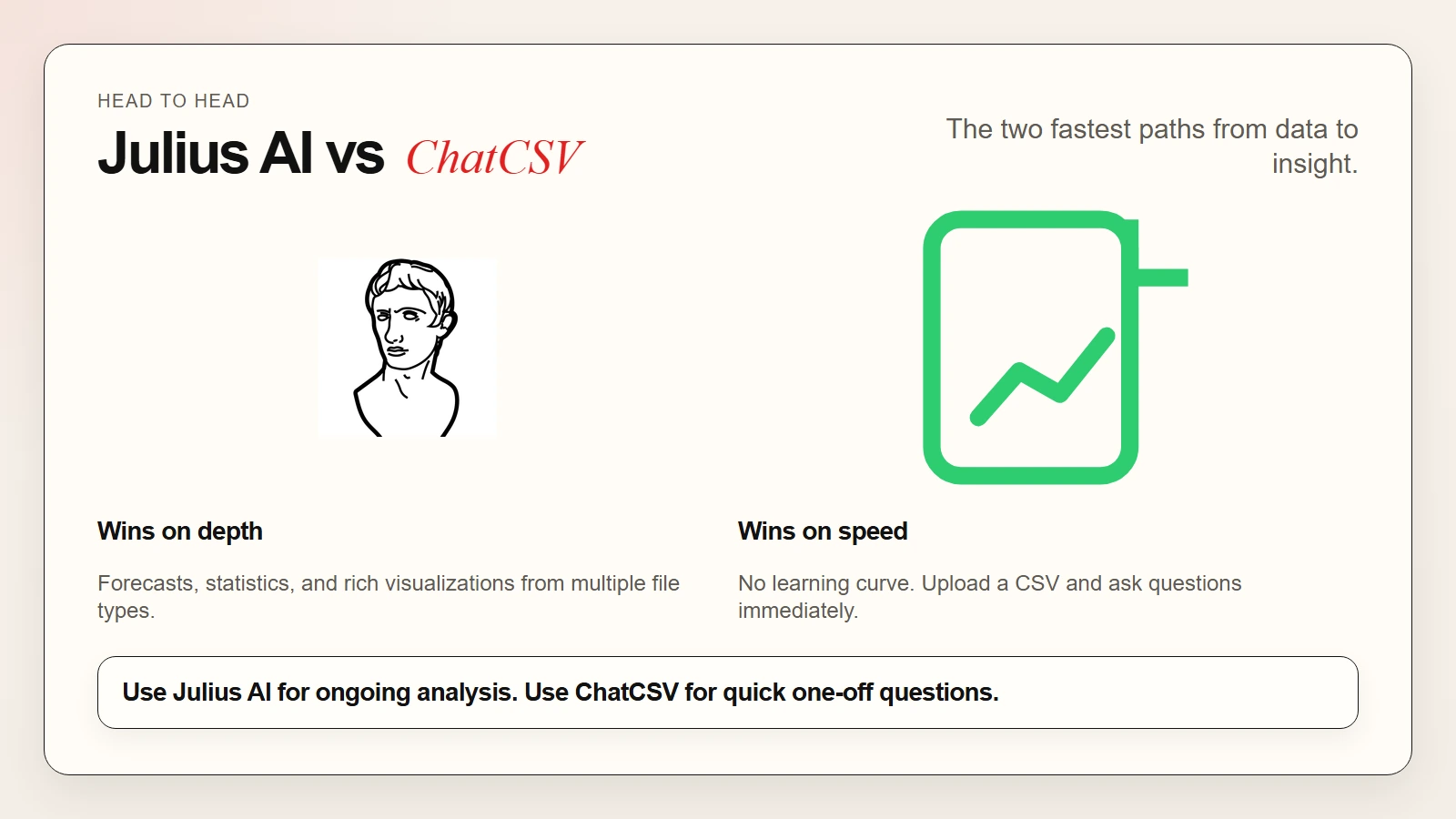 Caption: Julius AI is best for deep analysis. ChatCSV is best for quick CSV queries. Rows.com is best for spreadsheet-native teams.
Use-Case Matching Table
| Your Goal | Best Tool | Why It Fits |
|---|---|---|
| Upload a spreadsheet and get instant insights | Julius AI | Broad format support and strong visualization |
| Ask questions about a CSV file | ChatCSV | Fastest setup, pure conversational querying |
| Build a live dashboard from spreadsheet data | Rows.com | Embeddable reports and real-time integrations |
| Analyze data inside Excel | Microsoft Copilot | Native integration, no new tool to learn |
| Flexible analysis with code behind the scenes | ChatGPT Advanced Data Analysis | Python-powered, good for complex questions |
| Turn any dataset into a clickable dashboard | Polymer Search | Zero setup, automatic visualization suggestions |
| Team collaboration on data projects | Rows.com or Google Sheets | Built-in sharing and real-time editing |
Pricing Comparison
| Tool | Free Tier | Paid Start | Best For |
|---|---|---|---|
| Julius AI | Limited queries | ~$20/month | Deep analysis and forecasting |
| ChatCSV | Limited uploads | ~$10/month | Quick CSV querying |
| Rows.com | Limited rows/integrations | ~$15/month | Spreadsheet-native teams |
| Microsoft Copilot | Included with 365 | Part of 365 subscription | Excel users |
| ChatGPT Advanced Data Analysis | Included with Plus | ~$20/month (Plus) | Flexible code-backed analysis |
| Google Sheets AI | Included with Workspace | Part of Workspace | Google ecosystem users |
| Polymer Search | Limited datasets | ~$25/month | Instant dashboards |
Prices change frequently, so check each tool’s website for current rates. Most paid plans unlock higher limits, more storage, premium integrations, and team collaboration features.
How to Choose the Right Tool
Start with your data source. If you work mostly in Excel, Microsoft Copilot is the obvious first choice. If you work in Google Sheets, try Gemini integration first. If you pull data from many sources and want a modern spreadsheet, Rows.com is worth testing.
If you prefer a simple upload-and-ask workflow, Julius AI and ChatCSV are the fastest paths to insight. Julius AI is stronger for ongoing analysis and forecasting. ChatCSV is unbeatable for quick one-off CSV questions.
Next, test the free tier. Upload a real dataset you are currently working with and ask the same questions you would normally solve with formulas or pivot tables. Compare the speed and quality of the answers.
Finally, check the privacy policy. If your data contains customer information, financial records, or health data, make sure the tool’s security practices meet your compliance needs. Some tools offer enterprise plans with stronger privacy guarantees.
Warning: Never upload sensitive personal data, passwords, or proprietary information to an AI tool without confirming its data handling policy. When in doubt, use sample data or anonymized datasets for testing.
A Simple Starter Workflow
Here is a practical workflow you can use this week:
- Export your data. Pull a CSV or Excel file from your CRM, analytics tool, or accounting software.
- Upload to an AI tool. Start with Julius AI for deep analysis or ChatCSV for quick questions.
- Ask your first question. Try something simple like “What is the total revenue by month?” or “Which product had the highest growth?”
- Request a chart. Ask the AI to visualize the answer. Most tools generate bar charts, line graphs, or pie charts automatically.
- Dig deeper. Follow up with trend questions, comparisons, or forecasting requests.
- Export and share. Download the chart or report and share it with your team.
This workflow takes about fifteen minutes from upload to insight. Once you are comfortable, you can automate data refreshes using tools like Rows.com or build recurring dashboards.
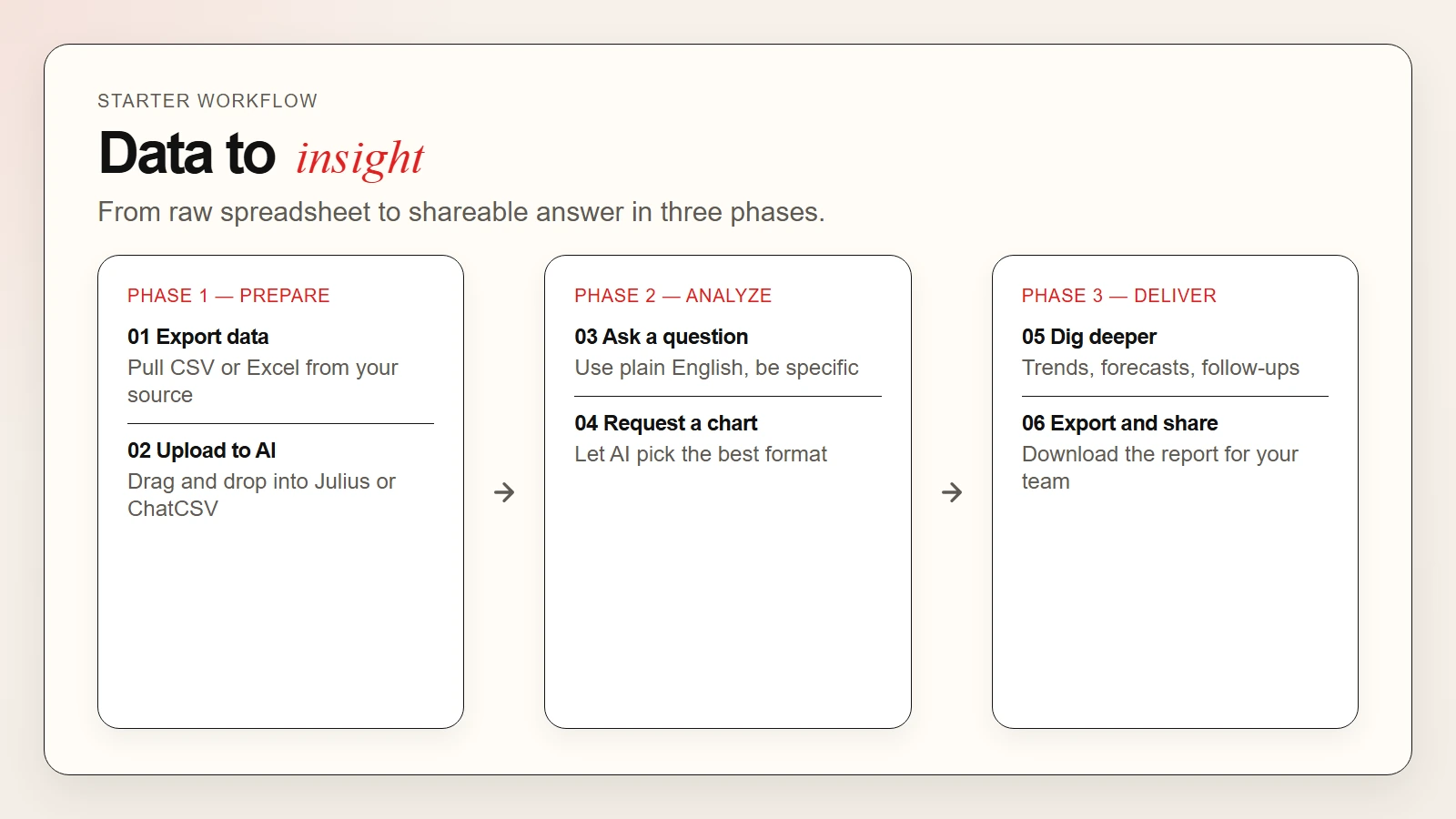 Caption: A simple 6-step workflow from raw data to shareable insight using AI analysis tools.
FAQ
Can AI really analyze data without me knowing statistics?
Yes. Modern AI tools can run statistical tests, build forecasts, and explain results in plain English. However, you should still understand what the numbers mean in your business context.
Is my data safe with AI analysis tools?
It depends on the tool. Check their privacy policy before uploading sensitive data. Some tools delete files after processing. Others may use data to improve models. Enterprise plans usually offer stronger privacy protections.
What file formats do these tools support?
Julius AI supports CSV, Excel, and JSON. ChatCSV supports CSV only. Rows.com supports CSV imports and direct integrations. Most tools can handle standard spreadsheet formats.
Can AI tools replace a data analyst?
For routine analysis, chart generation, and quick insights, yes. For complex modeling, custom metrics, and strategic data interpretation, a human analyst still adds significant value.
Do I need to pay for these tools?
Most offer free tiers with limits. Paid plans usually start between $10 and $25 per month and unlock higher usage, more storage, and team features.