
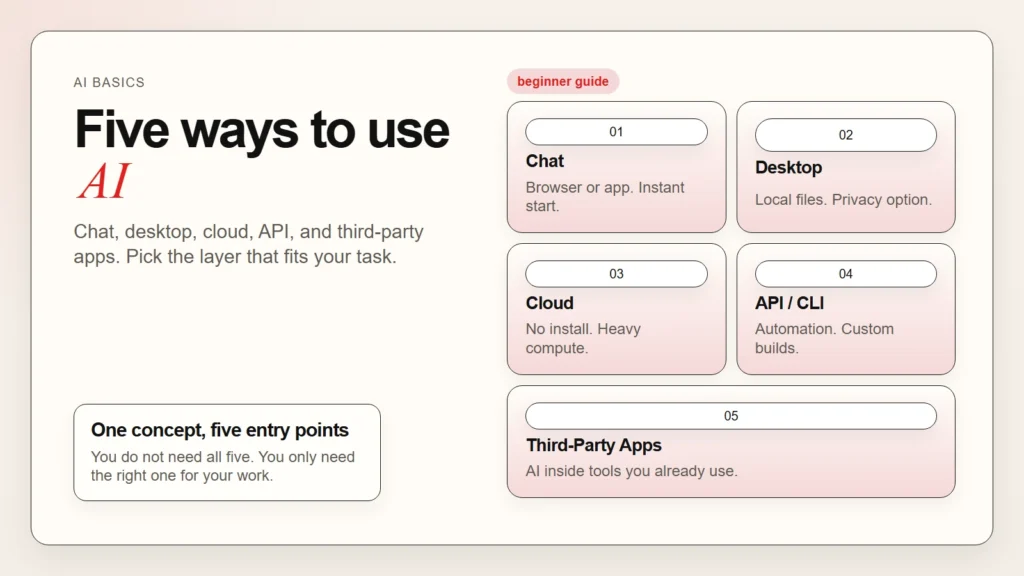
Most beginners think AI means opening ChatGPT in a browser. That is a great start, but it is only one of five common ways to use AI. Understanding the different ways to use AI helps you pick the right tool for your task, your privacy needs, and your skill level.
This guide breaks down each type into plain language. You will learn what it is, what it is best for, and where it falls short. By the end, you will know which entry point fits your work.
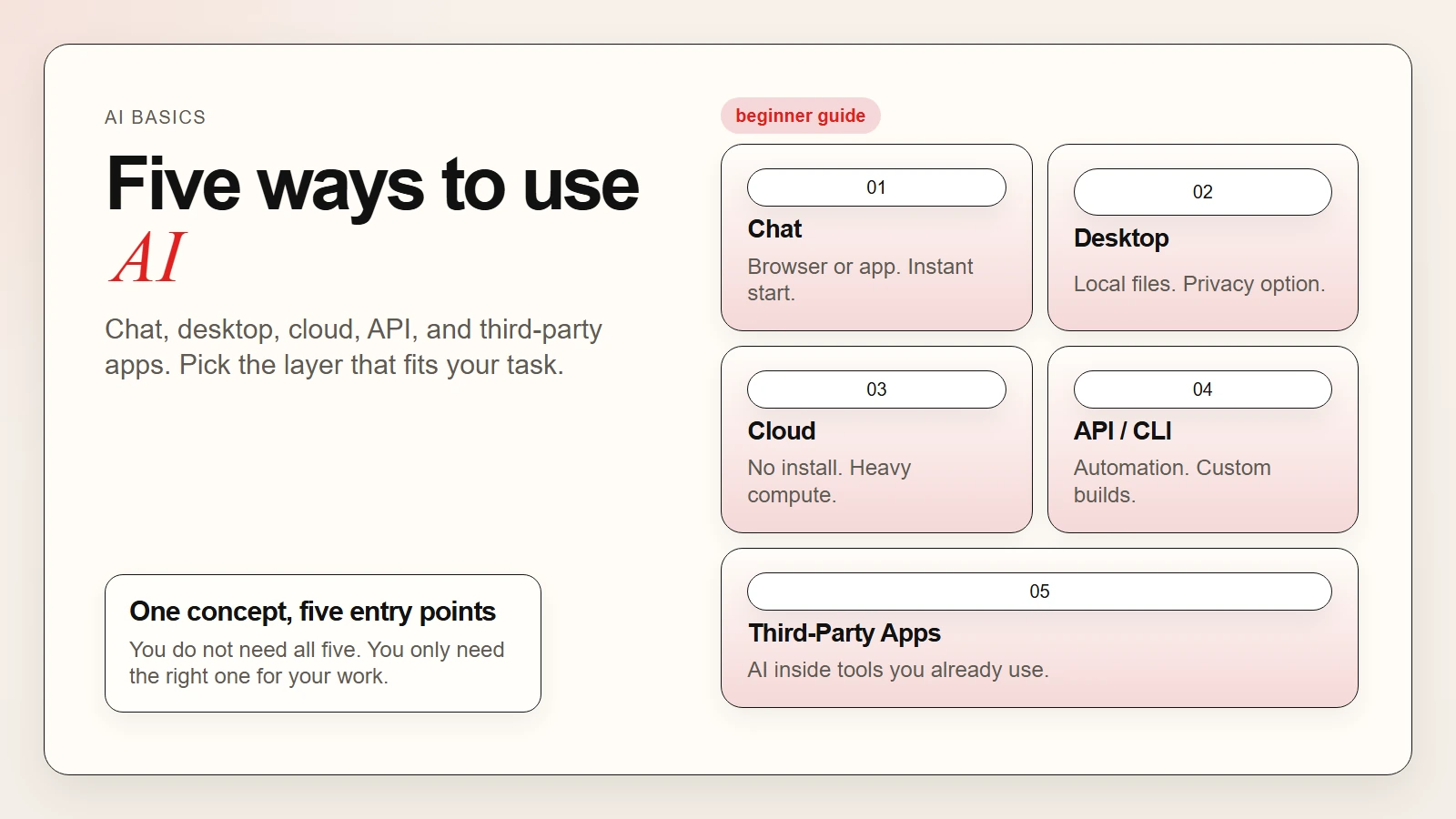 Caption: The five common ways to access AI, from the simplest chat interface to the most powerful API.
1. Chat Interface: The Easiest Front Door
A chat interface is the most familiar way to use AI. You type a message. The AI replies. You refine your request until you get what you need.
Popular examples include ChatGPT, Claude, Gemini, and Perplexity. These tools run in your browser or through a mobile app. You do not need to install software or write code.
What chat interfaces do best
- Quick questions. Ask for definitions, summaries, or explanations in seconds.
- Drafting and rewriting. Generate emails, blog outlines, or social posts, then edit them.
- Brainstorming. Explore ideas without committing to a direction too early.
- Learning. Work through a concept step by step at your own pace.
Where they fall short
Chat interfaces are manual. You copy text in, copy text out, and paste it wherever it needs to go. They do not connect to your files unless you upload documents one by one. They also run on the provider’s servers, which means your inputs leave your device.
Key takeaway: Chat is the best place to start if you are new to AI. It is free or low-cost, requires no setup, and teaches you how to write useful prompts.
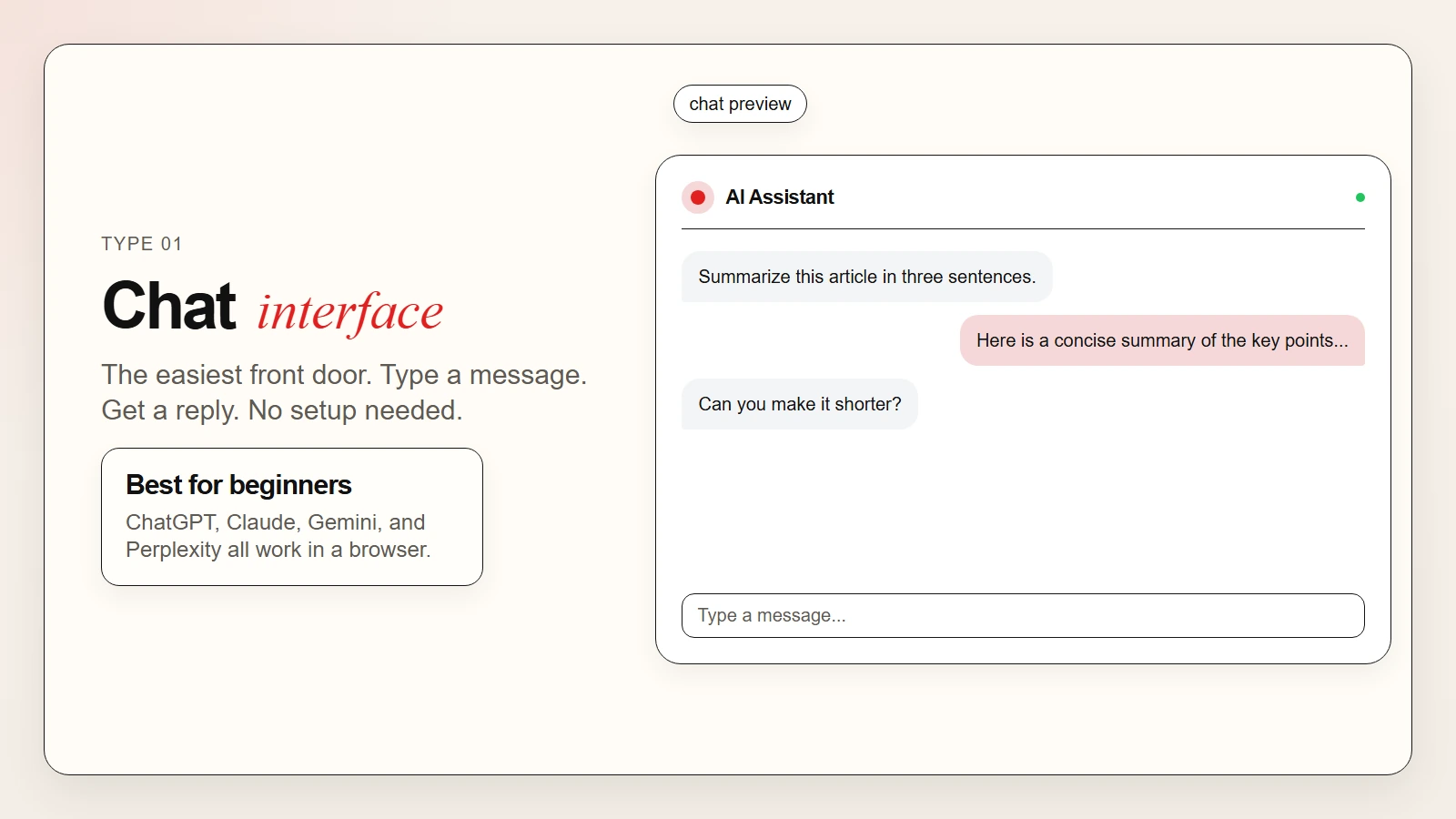 Caption: Chat interfaces like ChatGPT and Claude are the easiest entry point for beginners.
2. Desktop Apps: AI That Lives on Your Computer
Desktop apps bring AI onto your local machine. Some are cloud-connected but wrapped in native software. Others run entirely offline.
Examples include the ChatGPT desktop app, Claude Desktop, LM Studio, and GPT4All. Claude Desktop can read files on your computer. LM Studio and GPT4All let you download models and run them without an internet connection.
What desktop apps do best
- File access. Drag documents into the app instead of copying and pasting text.
- Privacy control. Local models keep your data on your machine. Nothing travels to the cloud.
- Deeper integration. Some desktop apps can interact with other software through extensions or plugins.
- Offline work. Local models work without Wi-Fi once installed.
The tradeoff
Local models require more powerful hardware. A standard laptop can run small models smoothly, but large models need more memory and a better graphics card. Cloud-connected desktop apps are easier to run but share data with the provider.
If you want to learn more about privacy and model choice, read our guide on open source AI models vs closed source models.
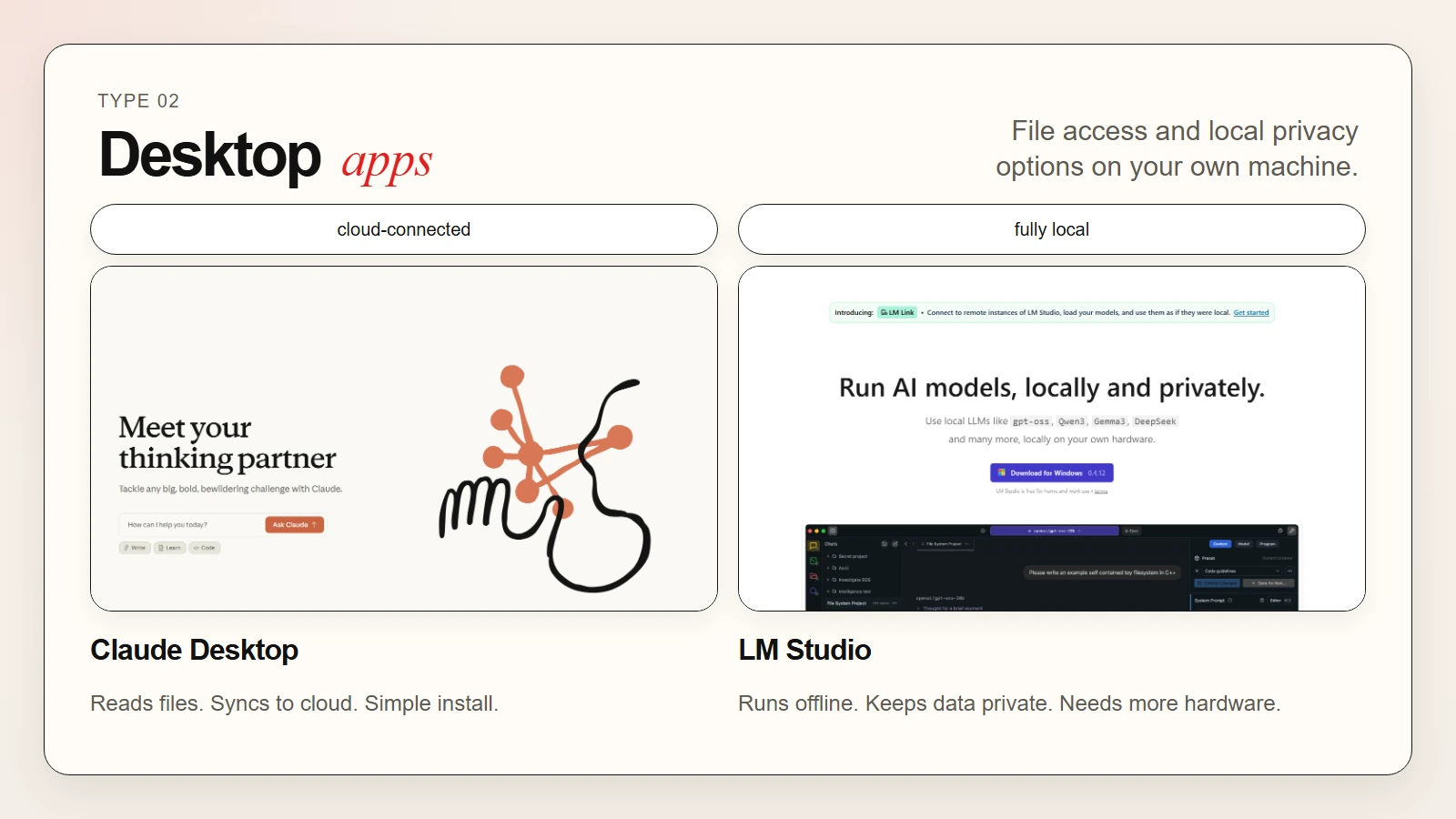 Caption: Cloud-connected desktop apps add file access. Local models like LM Studio keep data offline.
3. Cloud Platforms: AI Power Without Local Hardware
Cloud platforms let you use AI through a web dashboard without installing anything. They often give you access to multiple models, settings, and collaboration features.
Examples include Hugging Face, Google AI Studio, the OpenAI Playground, and cloud GPU services like RunPod or Lambda Labs.
What cloud platforms do best
- Model experimentation. Test different models side by side without downloading them.
- Team sharing. Invite colleagues to a project with shared prompts and outputs.
- Heavy compute. Run large models or process big datasets on remote servers.
- No installation. Log in and start working from any device.
Where they fall short
Your data lives on someone else’s server. If you work with sensitive information, check the platform’s privacy policy before uploading files. You also need a reliable internet connection. Downtime or slow speeds can interrupt your workflow.
If you are curious about experimenting with models in the cloud, our beginner’s guide to Hugging Face walks through the first steps.
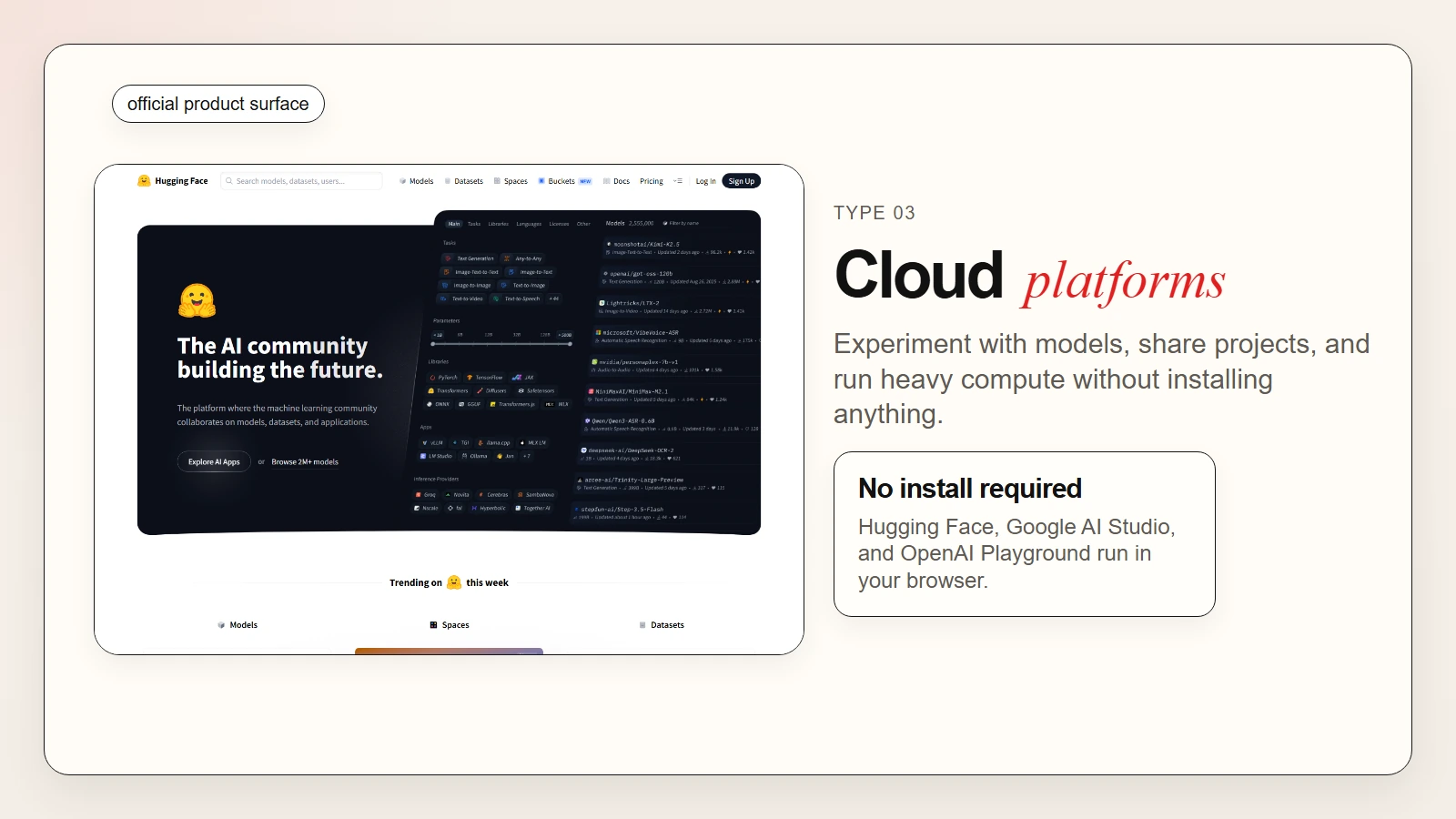 Caption: Cloud platforms let you test models and share projects without installing anything.
4. APIs and CLIs: For Builders and Automators
An API, or Application Programming Interface, lets software talk to software. A CLI, or Command Line Interface, lets you control tools by typing text commands in a terminal.
In the AI world, APIs let developers send data to a model and get results back automatically. CLIs like Codex, Claude Code, and Gemini CLI let you interact with AI through your terminal.
What APIs and CLIs do best
- Automation. Run AI tasks on a schedule without clicking anything.
- Custom apps. Build your own tool that uses AI in the background.
- Bulk processing. Analyze hundreds of files in one command.
- Integration. Connect AI to your existing spreadsheets, databases, or apps.
Do you need to be a developer?
You do not need to be an expert, but some coding helps. Many no-code tools now wrap APIs into clickable workflows. If you want to go deeper, learning a little Python or terminal basics opens up the most powerful layer of AI access.
Our guide to AI CLI tools explained covers Codex, Claude Code, and Gemini CLI in more detail. If you want to build an app, read our walkthrough on how to vibe code an app from idea to deployment.
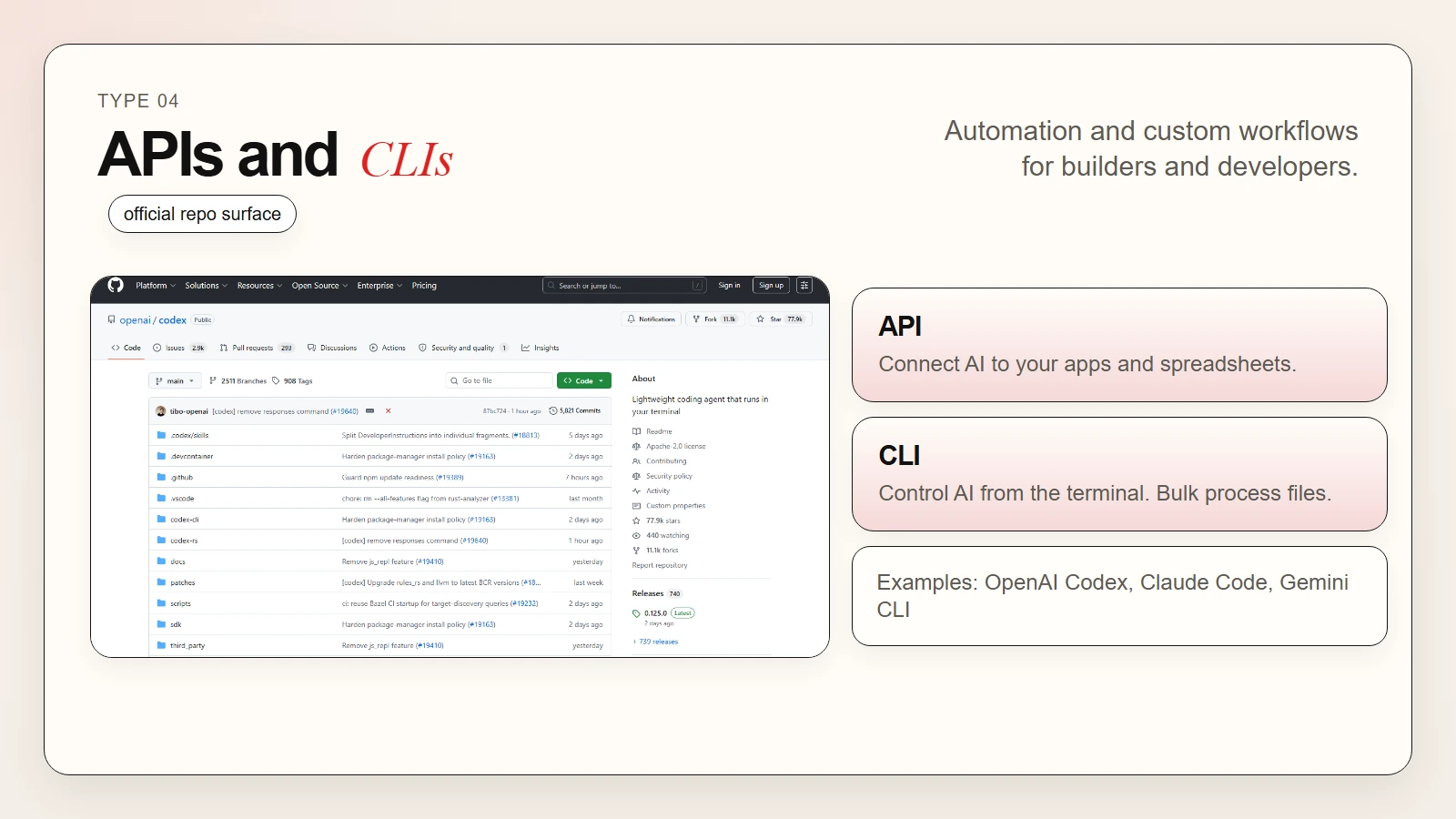 Caption: APIs connect AI to your apps. CLIs like Codex let you control AI from the terminal.
5. Third-Party Apps and Integrations: AI Inside Tools You Already Use
The fifth way to use AI is the most invisible. Many apps you already use now include built-in AI features.
Examples include Notion AI for notes, Microsoft Copilot for Office, Figma AI for design, Slack AI for messages, and smart replies in Gmail.
What integrated AI does best
- No context switching. You stay in the app you are already using.
- Native formatting. AI output matches the style of your document, slide, or design file.
- Faster adoption. You do not need to learn a new tool.
- Workflow fit. The AI understands the structure of your project.
The hidden cost
When AI is built into an app, it is easy to forget where your data goes. Some providers send your content to third-party model providers. Others process it on their own servers. Always check the settings to see if AI features are opt-in or opt-out.
For a broader view of which tools fit which tasks, see our roundup of the best free AI tools for writing, research, coding, and data analysis and our guide to top AI tools for everyday work.
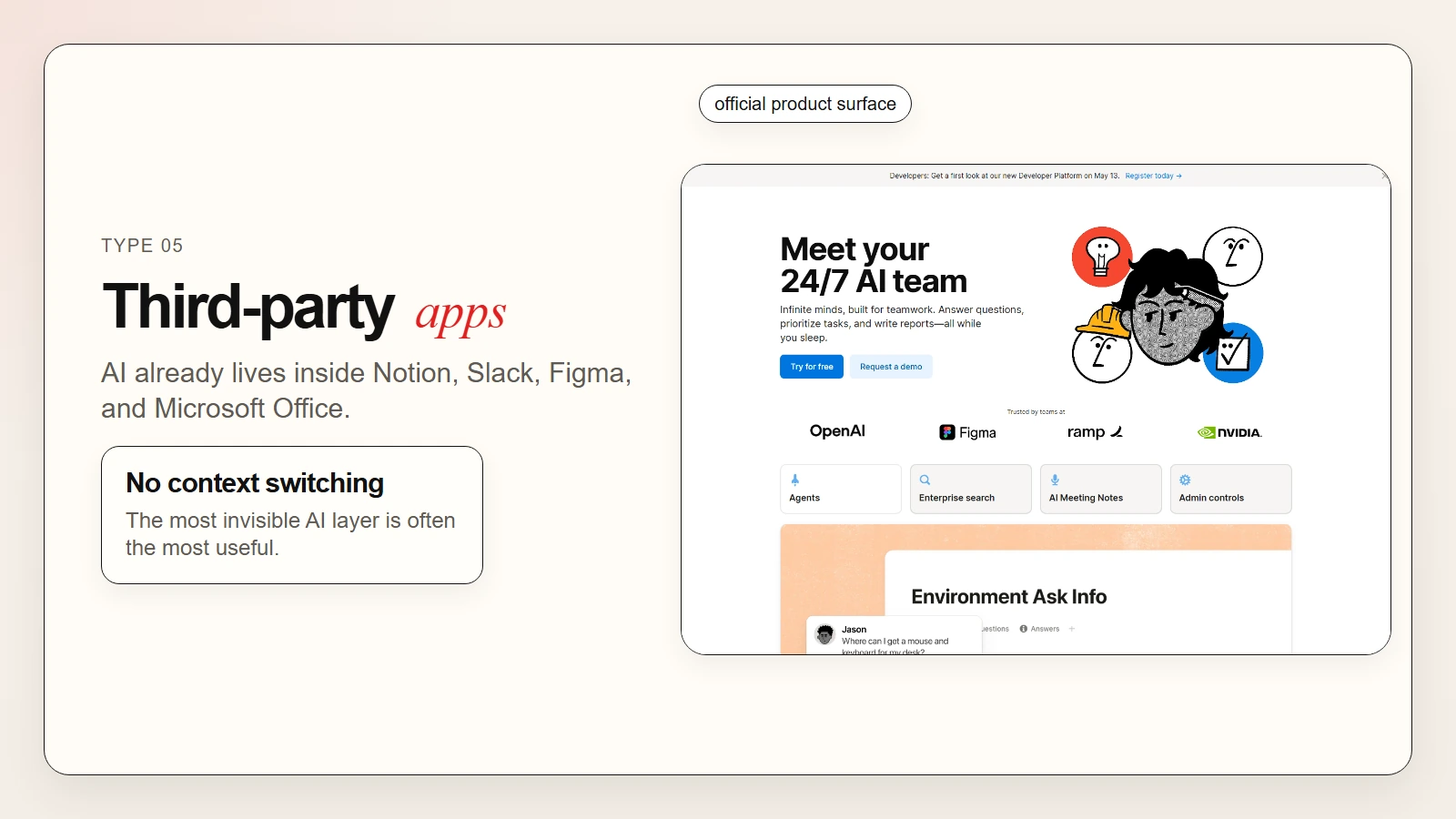 Caption: The most invisible AI layer is already inside the tools you use every day.
How to Choose the Right Type for Your Task
Picking the right way to use AI depends on four factors: ease of setup, privacy, integration depth, and your current skill level.
| Type | Setup | Privacy | Integration | Best For |
|---|---|---|---|---|
| Chat interface | Instant | Cloud-only | Manual copy-paste | Beginners, quick tasks |
| Desktop app | Easy install | Local option available | File drag-and-drop | Daily workflows, privacy focus |
| Cloud platform | Login only | Cloud-only | Team sharing, APIs | Experimentation, heavy compute |
| API / CLI | Requires setup | Configurable | Full automation | Developers, bulk workflows |
| Third-party app | Already installed | Varies by app | Native integration | Seamless work inside existing tools |
Use this table as a decision map, not a rulebook. Many people use two or three types depending on the task.
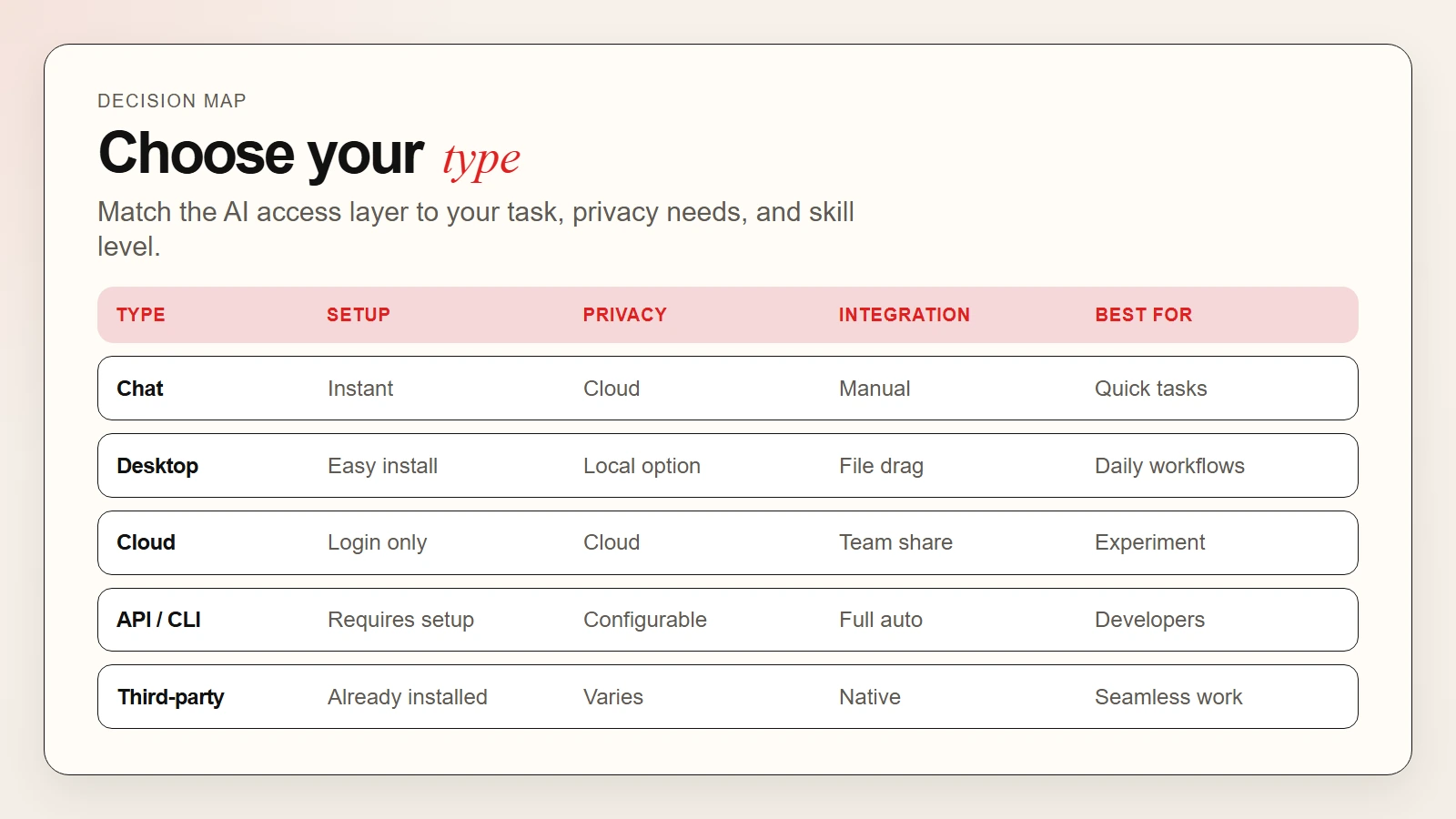 Caption: Match the AI access type to your task, privacy needs, and current skill level.
A Simple First-Week Plan
You do not need to master all five types. You only need to start with one. Here is a gentle plan.
Day 1: Open a chat interface. Ask it to summarize an article or draft an email. Get comfortable with back-and-forth prompting.
Day 2–3: Install one desktop app. Try dragging a document into it. Notice how it feels different from copy-paste.
Day 4–5: Visit one cloud platform. Test two different models on the same prompt. Compare the outputs.
Day 6–7: Look at the apps you already use. Check if any have AI features you have ignored. Turn one on and try it.
After week one: Decide which type saved you the most time. Double down there before exploring the others.
Safety and Privacy Reminders
AI is powerful, but not every input belongs in every tool. Keep these habits in mind.
- Check the data policy. Before pasting client files or personal health data, read where the information goes. Pew Research Center found that many users are unaware of how AI services handle their inputs.
- Use local models for sensitive work. If you cannot share data outside your device, run a local model through LM Studio or GPT4All.
- Avoid pasting passwords or credentials. No chat interface needs your login details to help you.
- Review before sending. AI suggestions in email or Slack can sound confident but still be wrong. Read them first.
For a deeper look at accuracy and verification, see our article on are AI tools accurate?
Warning: Third-party app AI features are often turned on by default. Check your settings. Opt out if you are not comfortable with your content being used for model training.
Frequently Asked Questions
Can I use AI without spending money?
Yes. Many chat interfaces offer generous free plans. Several desktop local models are free to download. Cloud platforms often have free tiers with rate limits.
Do I need to learn coding to use AI?
No. Chat interfaces, desktop apps, and third-party integrations require zero code. APIs and CLIs become useful only when you want automation or custom builds.
Which type is the most private?
Running a local model on your own machine is the most private option. Your data never leaves your computer. Cloud chat and third-party integrations are the least private unless the provider explicitly promises not to train on your data.
Can I switch between types?
Absolutely. Many advanced users start in chat to draft a prompt, then move to an API to automate it at scale. The types are complementary, not competing.
Key Takeaways
- Chat interfaces are the easiest entry point for beginners.
- Desktop apps add file access and local privacy options.
- Cloud platforms let you experiment with many models without installation.
- APIs and CLIs unlock automation and custom workflows for builders.
- Third-party integrations hide AI inside the tools you already use.
You do not need to master all five. Start with chat. Add desktop or cloud when you need more. Explore APIs when you are ready to automate. Let third-party integrations surprise you with what is already there.