
What Are AI CLIs? Codex, Claude Code, and Gemini CLI Explained
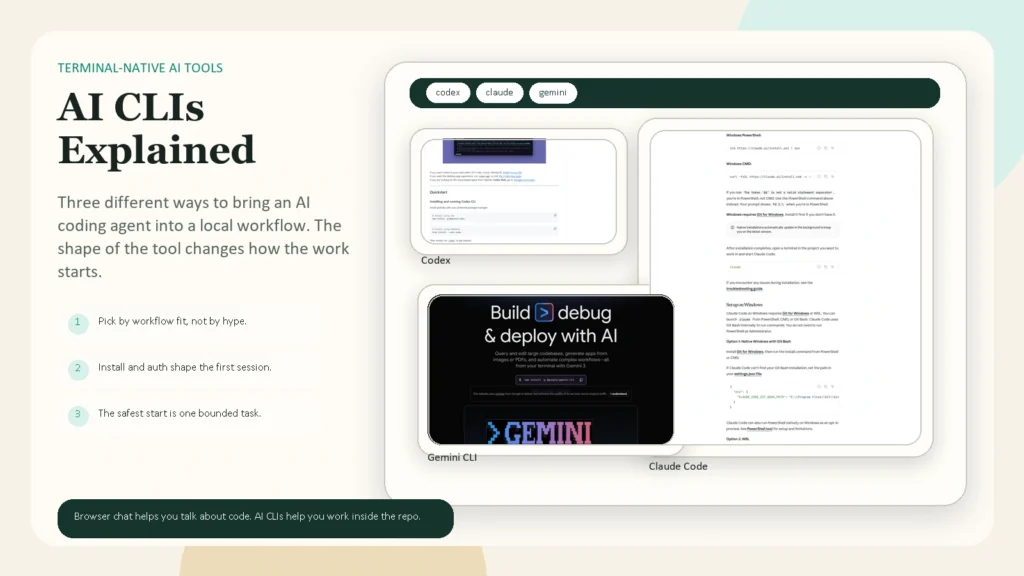
AI CLIs are command-line tools that bring an AI assistant directly into your terminal. Instead of pasting code into a browser chat, you open a project folder, launch a CLI like Codex, Claude Code, or Gemini CLI, and let the agent inspect files, suggest edits, run commands, and help with multi-step work. The short version is simple: browser chat helps you talk about code, but AI CLIs help you work inside the codebase itself.
This guide is for readers who want the practical version, not the hype version. As of April 10, 2026, the official install paths and feature sets are different enough that it is worth checking current vendor docs before choosing one. OpenAI positions Codex around code work and agentic workflows, Anthropic documents Claude Code around everyday developer workflows like debugging and testing, and Google frames Gemini CLI as an open-source terminal agent with built-in search, scripting, and MCP support.
Key Takeaways
- AI CLIs are terminal-based AI agents for coding, debugging, automation, and repo work.
- Codex, Claude Code, and Gemini CLI overlap, but they are not identical in install flow, authentication, and strengths.
- Codex is a strong fit if you want OpenAI’s coding agent in a local terminal workflow.
- Claude Code is a strong fit if you want a polished agentic coding workflow with strong documentation for codebase exploration, tests, refactors, and PRs.
- Gemini CLI is a strong fit if you want an open-source terminal agent with multiple auth paths, built-in Google Search grounding, and strong scripting options.
- Your safest first task is small: open one project, ask one bounded question, and verify the result before you trust or merge anything.
Table of Contents
- What is an AI CLI?
- Why use an AI CLI instead of browser chat?
- Quick comparison: Codex vs Claude Code vs Gemini CLI
- How to install Codex
- How to install Claude Code
- How to install Gemini CLI
- Common use cases for AI CLIs
- How to choose the right AI CLI
- A safe first workflow
- FAQ
What Is an AI CLI?
CLI stands for command-line interface. An AI CLI is an AI assistant that runs from the terminal instead of a browser tab. In practice, that usually means the tool can:
- read files in your working directory
- inspect project structure
- answer questions about code
- suggest or apply edits
- run shell commands
- support longer, multi-step tasks
That does not mean all AI CLIs are equally autonomous or equally safe by default. They still depend on permissions, tooling, model behavior, and your review process.
What makes AI CLIs different from plain chatbot use is context. A terminal-based agent can often see the actual repo, the error output, the test suite, and the working files at the same time. That reduces copy-paste overhead and makes the tool more useful for real developer workflows.
Why Use an AI CLI Instead of Browser Chat?
Browser chat is still useful for explanations, brainstorming, and isolated questions. But once the job becomes “open this repo and help me do the work,” a CLI is usually the better shape.
AI CLIs are especially useful when you need to:
- understand an unfamiliar codebase
- trace where a bug is coming from
- write or fix tests
- automate a repeated terminal workflow
- run a review or summary against current files
- work inside version-controlled projects
This matters because the terminal is where many development workflows already live. Instead of leaving that environment, an AI CLI meets you there.
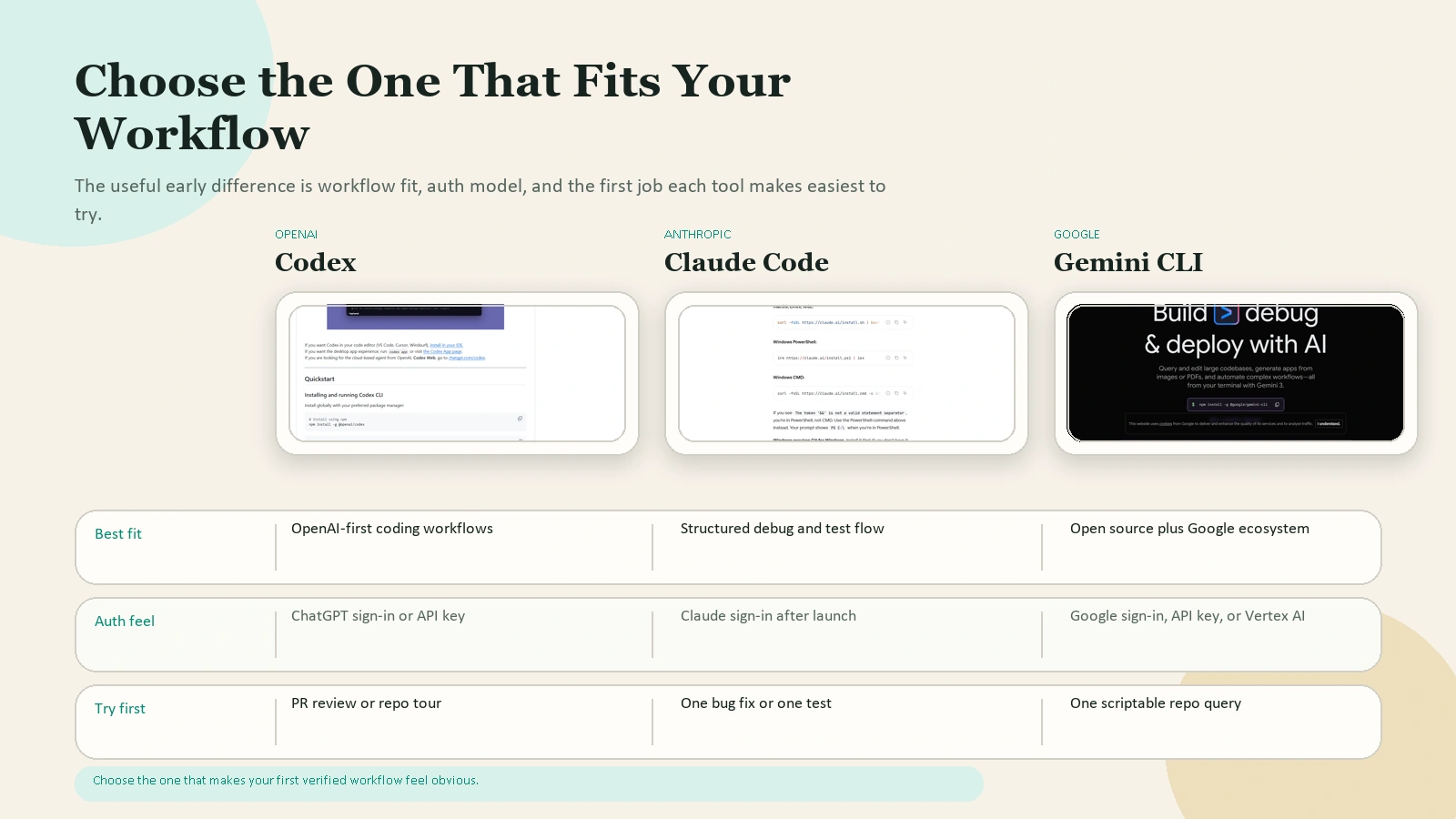 Caption: The useful first comparison is not raw capability hype. It is workflow fit, auth model, and the first task each tool makes easiest.
Quick Comparison: Codex vs Claude Code vs Gemini CLI
The easiest way to compare these tools is by workflow shape, not by brand loyalty.
| Tool | Best fit | Install path | Auth path | Common starting tasks |
|---|---|---|---|---|
| Codex | OpenAI-first coding workflows | npm install -g @openai/codex or brew install --cask codex |
Sign in with ChatGPT or use an API key | PR review, codebase understanding, front-end work, API upgrades |
| Claude Code | Structured developer workflows with strong docs | Native installer, Homebrew, or WinGet | Start claude after install and sign in through Claude flow |
Explore codebases, debug, refactor, write tests, create PRs |
| Gemini CLI | Open-source terminal agent with flexible auth and scripting | npx, npm, Homebrew, MacPorts, or Anaconda env |
Google sign-in, Gemini API key, or Vertex AI | Query large repos, automate scripts, use grounded search, GitHub workflows |
If you only want the shortest beginner answer:
- choose Codex if you already prefer OpenAI tooling
- choose Claude Code if you want the clearest guided developer workflow docs
- choose Gemini CLI if you want the most flexible open-source setup and Google ecosystem options
How to Install Codex
OpenAI’s official openai/codex repository describes Codex CLI as a coding agent from OpenAI that runs locally on your computer. As of April 10, 2026, the README lists two main install paths:
npm install -g @openai/codex
brew install --cask codex
After install, you start it with:
codex
For authentication, OpenAI’s README recommends signing in with ChatGPT if you have a supported plan. It specifically references Plus, Pro, Business, Edu, and Enterprise plan support. It also notes that you can use Codex with an API key if you prefer that route.
What Codex is best for
OpenAI’s official Codex use cases page is useful because it shows how OpenAI thinks teams actually use the tool. The examples are not just “write code.” They include:
- reviewing pull requests faster
- understanding large codebases
- building responsive front-end designs
- turning Figma designs into code
- analyzing datasets and shipping reports
- upgrading API integrations
That gives you a good clue about Codex’s center of gravity. It is not just a terminal chatbot. It is meant for coding work, repo work, and agentic task execution around development workflows.
Who should start with Codex
Start with Codex if:
- you already use OpenAI products
- you want a local terminal agent with OpenAI’s coding focus
- you care about use cases like PR review, UI implementation, and codebase analysis
How to Install Claude Code
Anthropic’s official Claude Code setup docs give the clearest install matrix of the three tools. As of April 10, 2026, Anthropic lists:
- native install for macOS, Linux, and WSL
- native install for Windows PowerShell and CMD
- Homebrew install
- WinGet install
The docs show these commands:
curl -fsSL https://claude.ai/install.sh | bash
irm https://claude.ai/install.ps1 | iex
brew install --cask claude-code
winget install Anthropic.ClaudeCode
Then you launch it with:
claude
One practical detail matters for Windows users: Anthropic says Git for Windows is required for Claude Code on Windows. That is the kind of install note people often miss if they skim the page too fast.
What Claude Code is best for
Anthropic’s official Common workflows page makes Claude Code’s positioning very clear. The docs explicitly cover workflows for:
- exploring unfamiliar codebases
- fixing bugs
- refactoring
- writing tests
- creating pull requests
- handling documentation
- piping data in and out
- using Claude in scheduled or verification workflows
This makes Claude Code feel less like a loose tool and more like a documented operating model for developer work. That is one reason many teams find it easy to adopt quickly.
Who should start with Claude Code
Start with Claude Code if:
- you want strong workflow documentation
- you care about debugging, testing, and PR creation inside one tool
- you want a polished developer-oriented CLI with explicit permission and workflow patterns
If you are more interested in Anthropic’s non-terminal workflow for knowledge work, see the future internal link opportunity for /blog/claude-cowork-for-beginners.
How to Install Gemini CLI
Google positions Gemini CLI differently from Claude Code. The official google-gemini/gemini-cli repository calls it an open-source AI agent that brings Gemini directly into your terminal.
As of April 10, 2026, the official README lists several install options:
npx @google/gemini-cli
npm install -g @google/gemini-cli
brew install gemini-cli
sudo port install gemini-cli
Google also documents an Anaconda-based install path for restricted environments, which is unusual enough to be worth noting.
Gemini CLI authentication options
Gemini CLI is the most explicit of the three about auth choices in its main README. Google documents three primary options:
- Sign in with Google
- Gemini API key
- Vertex AI
The README says that with a personal Google account, the Google sign-in path includes a free tier of 60 requests per minute and 1,000 requests per day, plus access to Gemini 3 models with a 1 million token context window. Those numbers matter because they influence whether Gemini CLI feels like an easy first experiment or something you need to budget carefully from day one.
It also shows:
export GEMINI_API_KEY="YOUR_API_KEY"
gemini
And for Vertex AI:
export GOOGLE_API_KEY="YOUR_API_KEY"
export GOOGLE_GENAI_USE_VERTEXAI=true
gemini
What Gemini CLI is best for
Google’s README highlights:
- querying and editing large codebases
- generating apps from PDFs, images, or sketches
- debugging with natural language
- using built-in Google Search grounding
- running non-interactively in scripts
- extending the tool with MCP servers
- integrating with GitHub workflows through the Gemini CLI GitHub Action
That makes Gemini CLI especially interesting if you care about open-source tooling, flexible auth, scripting, and Google ecosystem connections.
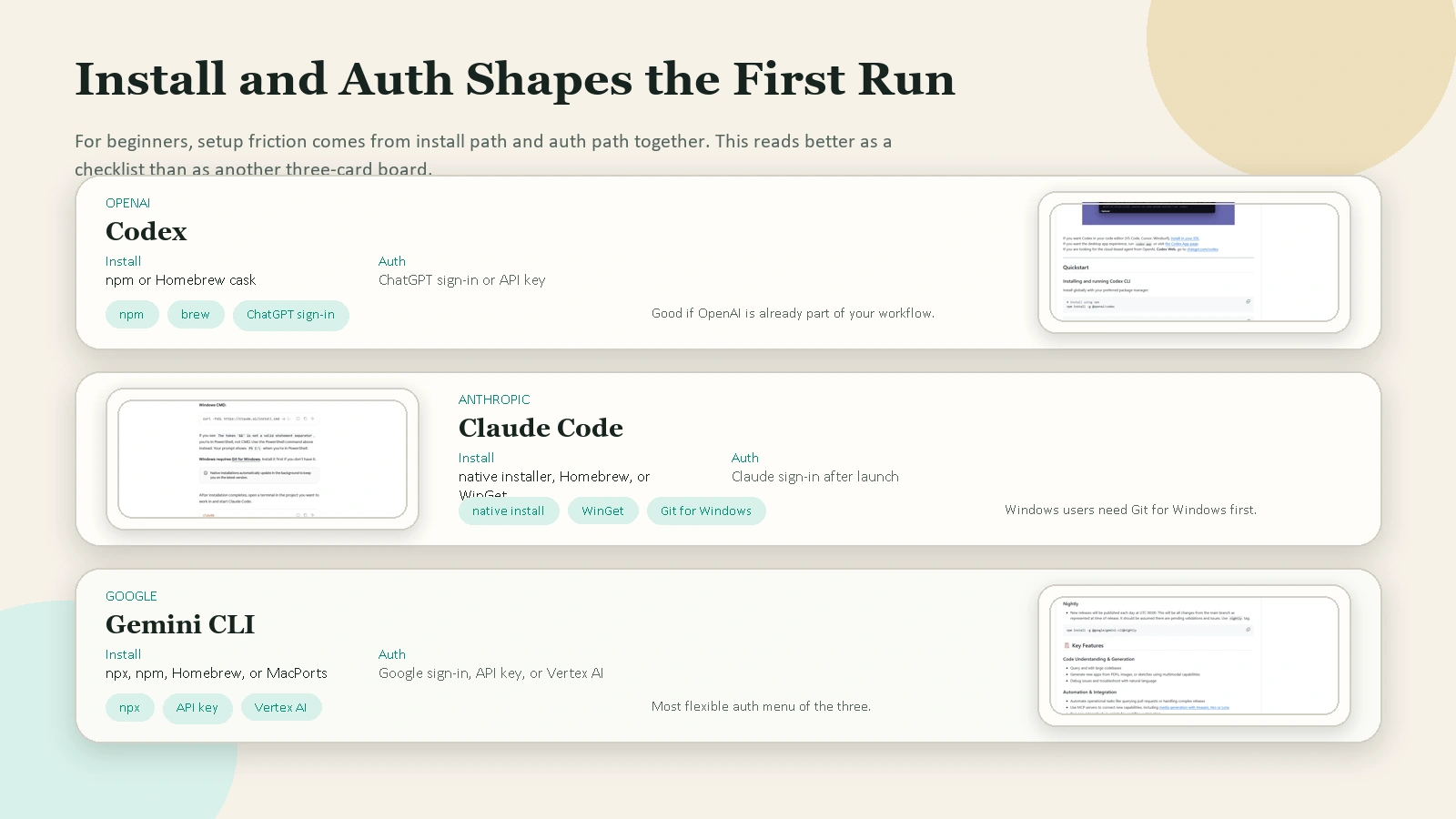 Caption: For beginners, setup is not just the install command. The real difference is how quickly each tool gets you from install to a trusted first session.
Common Use Cases for AI CLIs
Most people should not start by asking, “Which model is best?” They should start by asking, “What job am I trying to do in the terminal?”
Here are the common use cases where AI CLIs are strongest.
1. Understanding a new codebase
This is one of the best beginner use cases because it is low risk and high value. Ask the CLI to:
- map the main folders
- explain how requests flow through the app
- identify where authentication lives
- summarize the test setup
OpenAI explicitly promotes large-codebase understanding in Codex use cases. Anthropic does the same in Claude Code workflows. Google lists large-codebase querying and editing directly in Gemini CLI’s README.
2. Debugging a failing feature
This is where terminal context helps more than plain chat. Instead of describing the problem from memory, you can point the tool at:
- the failing file
- the stack trace
- test output
- the current branch
Claude Code’s workflow docs are especially strong here because they break debugging and test work into stepwise patterns, but all three tools can help if you scope the task clearly.
3. Writing and fixing tests
Anthropic documents test workflows directly for Claude Code. Gemini CLI supports script-style and repo-scale workflows. Codex is positioned toward coding and review tasks where test generation or fixing is a natural follow-on.
The practical rule is the same for all three: let the tool propose the test, then make sure the test actually reflects the behavior you want rather than merely satisfying the current implementation.
4. Reviewing pull requests and repo changes
Codex explicitly markets PR review as a common use case. Gemini CLI documents PR review and issue triage through its GitHub Action path. Claude Code covers PR creation and review-friendly workflows in its docs.
This is a good use case because AI CLIs can scan changed files faster than a human can, but you still need a human to decide whether the architectural direction and risk tradeoffs are sound.
5. Running structured automation
This is where CLIs start to pull away from browser chat. Both Claude Code and Gemini CLI document non-interactive or scheduled workflows. Gemini CLI supports script use and structured output. Claude Code documents piping, output formats, and scheduled-task patterns. Codex also supports broader agentic workflows through its tooling and automation surface.
Good examples:
- summarize yesterday’s changes
- lint a diff with a custom prompt
- explain build failures in CI logs
- review open PRs on a schedule
6. Turning references into working code
Codex is strong here based on OpenAI’s official use cases around Figma-to-code and front-end implementation. Gemini CLI also leans into multimodal workflows, including generating apps from PDFs, images, or sketches. Claude Code can do this kind of work too, but its public docs emphasize the broader developer workflow more than a design-to-code story.
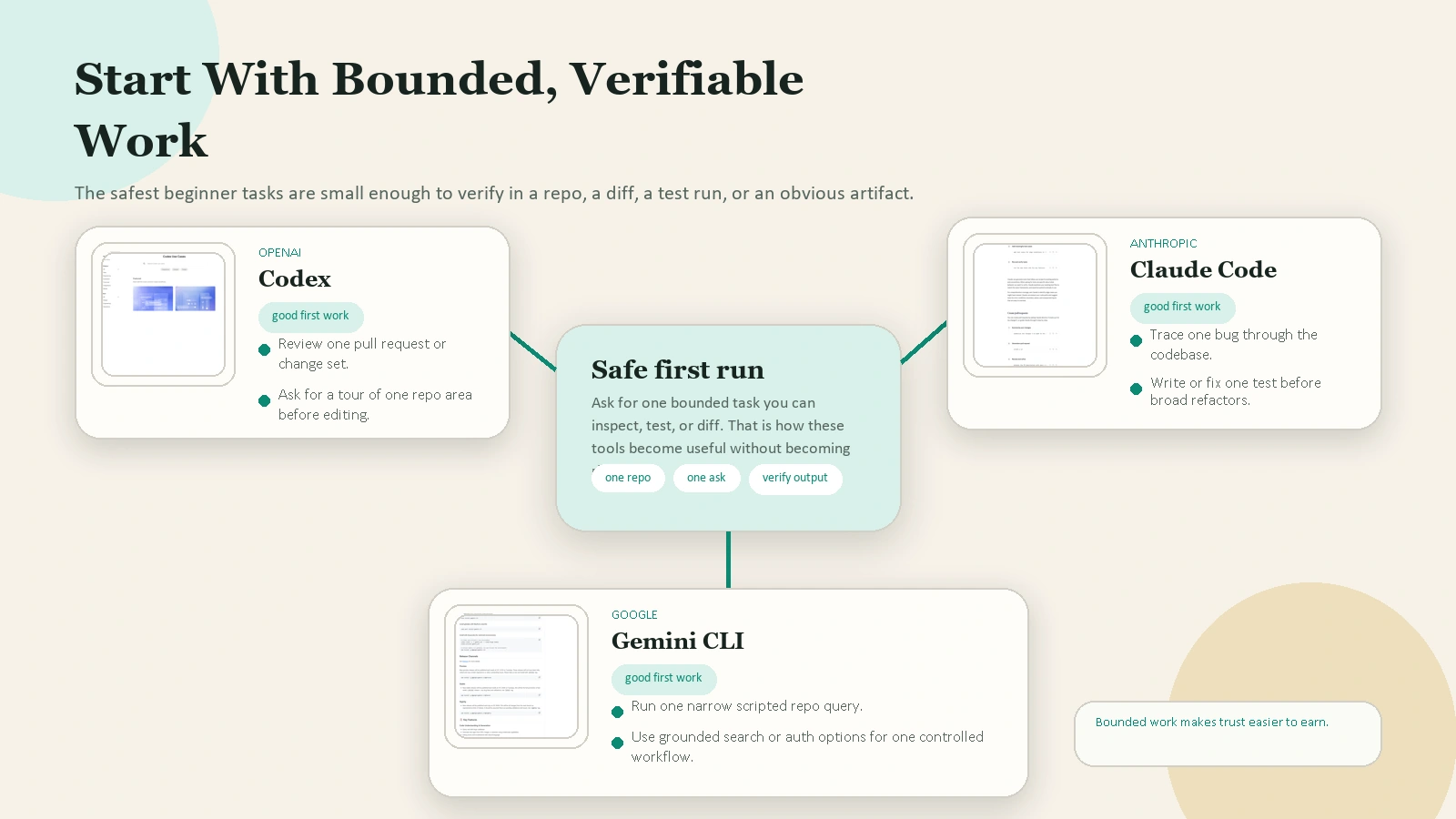 Caption: The safest beginner tasks are small enough to review: understand one repo area, fix one bug, write one test, or automate one narrow workflow.
How to Choose the Right AI CLI
There is no single correct answer, but there is a practical answer for your situation.
Choose Codex if:
- you already work in the OpenAI ecosystem
- you want OpenAI’s coding agent directly in the terminal
- you care about PR review, UI work, and OpenAI-oriented development workflows
Choose Claude Code if:
- you want the clearest developer workflow documentation
- you care about codebase exploration, test work, refactoring, and PR flows
- you want a mature-feeling CLI experience with strong docs around how to use it well
Choose Gemini CLI if:
- you want an open-source CLI
- you want multiple auth paths
- you care about scripting, Google Search grounding, or Google ecosystem connections
- you want to experiment with a generous personal-account starting path
The honest answer for many developers
You may end up using more than one.
That is not a failure to choose. It is normal. One tool may fit your day-to-day repo workflow better, while another may fit automation, search-grounded tasks, or a specific model preference.
A Safe First Workflow
Your first AI CLI task should be boring on purpose.
Do this instead of attempting a full feature build on day one:
- Open one project directory.
- Start the CLI.
- Ask one bounded question such as “Summarize this codebase’s main modules” or “Explain this failing test.”
- Review the answer against the actual files.
- Only then move into edits, commands, or automation.
Why this works:
- the scope is small
- the result is easy to verify
- you learn the tool’s style quickly
- mistakes are cheap
What not to do:
- grant wide permissions before you understand the workflow
- trust generated changes without review
- ask vague prompts like “fix my app”
- confuse speed with correctness
FAQ
Are AI CLIs only for senior developers?
No, but they do assume more terminal comfort than regular browser chat. A beginner who can navigate folders, run install commands, and read terminal output can still get value from them, especially for codebase explanation and debugging.
Which AI CLI is easiest to install?
The shortest first run is usually Gemini CLI with npx @google/gemini-cli, because it can run without a full global install. Claude Code has the most explicit multi-platform install docs. Codex has a simple npm or Homebrew path and a straightforward ChatGPT sign-in flow.
Are AI CLIs better than browser chat?
Not always. Browser chat is better for quick explanations and one-off questions. AI CLIs are better when the task depends on the actual repo, shell, files, or multi-step workflow.
Can I use more than one AI CLI?
Yes. Many developers do. The main cost is not confusion about brands. It is the overhead of remembering install, auth, settings, and workflow differences.
Which one is best for automation?
Claude Code and Gemini CLI both document automation and scripting clearly. Codex also supports agentic workflows, but if your main priority is explicit scriptable patterns and flexible auth, Gemini CLI is especially notable.
Conclusion
AI CLIs are best understood as terminal-native AI workstations, not just chatbots with a prompt box. Codex, Claude Code, and Gemini CLI all help with code understanding, debugging, review, and automation, but they differ in ecosystem fit, installation model, and workflow design.
If you are choosing your first one, do not optimize for abstract model arguments. Optimize for:
- which ecosystem you already use
- which auth path is simplest for you
- which workflows you actually need this week
- which docs make the tool easiest for you to use responsibly
The best first test is small and real: open a repo, ask one bounded question, and verify the answer yourself.
Suggested Internal Link Opportunities
- /blog/claude-cowork-for-beginners
- /blog/open-source-ai-models-vs-closed-source-models
- /blog/how-to-review-ai-output-before-you-trust-it
- /blog/best-ai-tools-for-everyday-work