
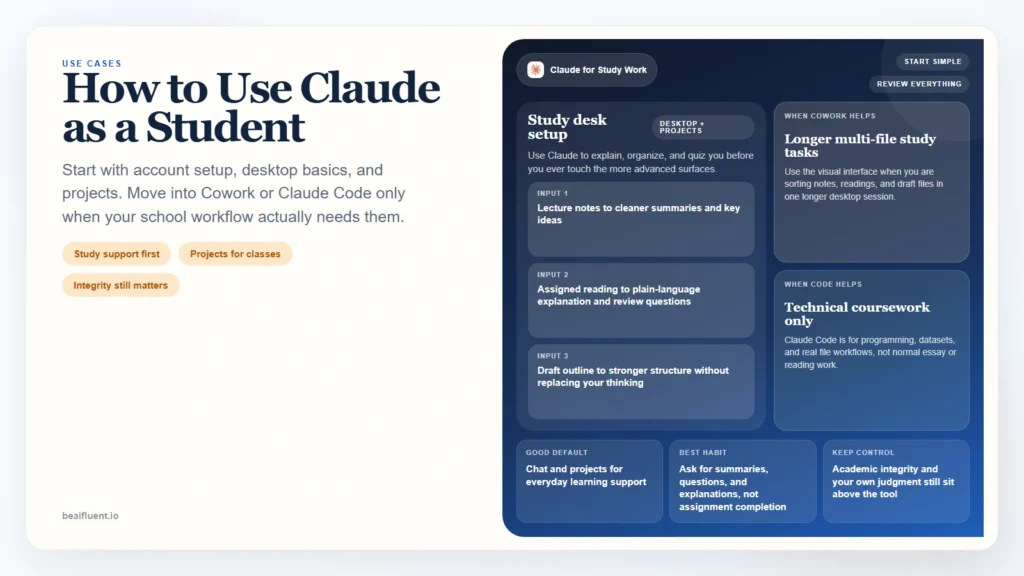
The best way to use Claude as a student is to start with the normal Claude product first, not the most advanced Claude product first. For most students, the right sequence is: create a Claude account, learn the basics on web or desktop, use projects and file uploads for class work, and only move into Claude Cowork or Claude Code if your work becomes more structured, multi-step, or technical.
That matters because students often hear about agentic AI features before they have a clean everyday study workflow. In practice, most students get value earlier from simpler tasks like summarizing readings, explaining difficult concepts, generating practice questions, organizing notes, and turning rough ideas into cleaner outlines. Cowork and Claude Code can help later, but they are not the first thing most students need.
This guide explains how to use Claude as a student, how to create a Claude account, how to use Claude Desktop, when projects, Cowork, and Claude Code make sense, and how to stay inside academic-integrity boundaries while still getting real value from the tool.
Key Takeaways
- Start with a normal Claude account and core chat or project workflows before you think about Cowork or Claude Code.
- Claude Desktop is useful for students because it gives you a cleaner home for files, recurring projects, and longer study sessions than scattered browser tabs.
- Anthropic’s Help Center says projects are available to all Claude users, including free users, and free users can create up to five projects (How can I create and manage projects?).
- Anthropic’s education FAQ says university-sponsored Claude for Education accounts can include projects, file uploads, higher usage, and access to newer models, though exact features may depend on the school (FAQs on Using Claude for Education at Your University).
- Cowork is an advanced desktop option for paid Claude plans, and Claude Code is a later-stage option that makes most sense for coding, data, or file-heavy student workflows (Install Claude Desktop, Claude Code overview).
- Claude should support your learning, not replace the thinking or assignment work your course expects you to do yourself.
Table of Contents
- What Claude is useful for as a student
- How to create a Claude account
- How to download and use the basics of Claude Desktop
- When to use Claude chat, projects, Cowork, and Claude Code
- Best student tasks for Claude
- A simple student workflow in Claude
- Worked example: turning class material into a study pack
- Academic integrity and safety checklist
- FAQ
What Claude Is Useful for as a Student
Claude is not a replacement for attending class, reading the material, or doing your own thinking. What it can do well is help you process information faster and more clearly.
What this means: for most students, Claude is useful for:
- summarizing readings after you have looked at them yourself
- explaining difficult concepts in simpler language
- turning lecture notes into cleaner study guides
- drafting outlines for essays or presentations
- generating practice questions and flashcards
- organizing research material and comparing sources
- helping you revise writing for clarity and structure
Those are support tasks, not substitute tasks. Claude is strongest when you use it to improve understanding, structure, and preparation. It is weaker when you ask it to do the actual intellectual work your course expects from you.
If you are still early in your AI learning curve, How to Start Using AI as a Complete Beginner is a useful companion because the same beginner-safe habits apply here too.
How to Create a Claude Account
Before you think about Claude Desktop, Cowork, or Claude Code, you need a normal Claude account. Anthropic’s getting-started guide says Claude is available on web, desktop, and mobile, and users must be in a supported location and at least 18 years old to use the service (Get started with Claude).
Anthropic’s login article says you can sign in with email or Google on web, desktop, or mobile, and the same account works across devices (Logging in to your Claude account).
Step-by-step account setup
- Go to
claude.ai. - Choose
Continue with emailor the Google sign-in flow. - If you use email, open the secure login email Anthropic sends you.
- Click the login link on the same device, or enter the verification code on the original device if you opened the email elsewhere.
- Start with the free account unless you already know you need higher limits or a university-sponsored plan.
If your university offers Claude for Education
Some students will not be using a standard individual account. Anthropic’s education FAQ says university-sponsored Claude for Education accounts can include an enhanced context window, projects, increased usage limits, priority access, and file uploads, though institutions may customize the experience (FAQs on Using Claude for Education at Your University).
Why it matters: if your school offers Claude, use the institution guidance first. Your school may have its own rules around acceptable use, data handling, and academic-integrity expectations.
Start with one Claude account and one study use case. Do not complicate the setup by mixing normal Claude, Cowork, Claude Code, and outside tools before you know which workflow actually helps you learn.
How to Download and Use the Basics of Claude Desktop
For many students, Claude Desktop is the best next step after account creation because it gives you a more stable study environment than one-off browser chats.
Anthropic’s desktop install guide says Claude Desktop is available for macOS 11 or later and Windows 10 or later, and you install it from the Claude downloads page before signing in with your account (Install Claude Desktop).
Basic Claude Desktop setup
- Go to claude.com/download.
- Download the correct installer for your operating system.
- Open the installer file and finish setup.
- Launch Claude from Applications on macOS or the Start menu on Windows.
- Sign in with the same Claude account you already created.
What to do first in Claude Desktop
Claude Desktop is most useful when you treat it like a study workspace instead of a random chat box.
Do this first:
- create one project for one class or one recurring workflow
- upload course materials you are allowed to use there
- keep one chat focused on one assignment or study goal
- save prompt patterns that help you study better
- keep your own notes beside Claude’s output instead of replacing them
Anthropic’s projects article says projects are available to all users, including free users, and project knowledge can be reused across chats inside that project (How can I create and manage projects?).
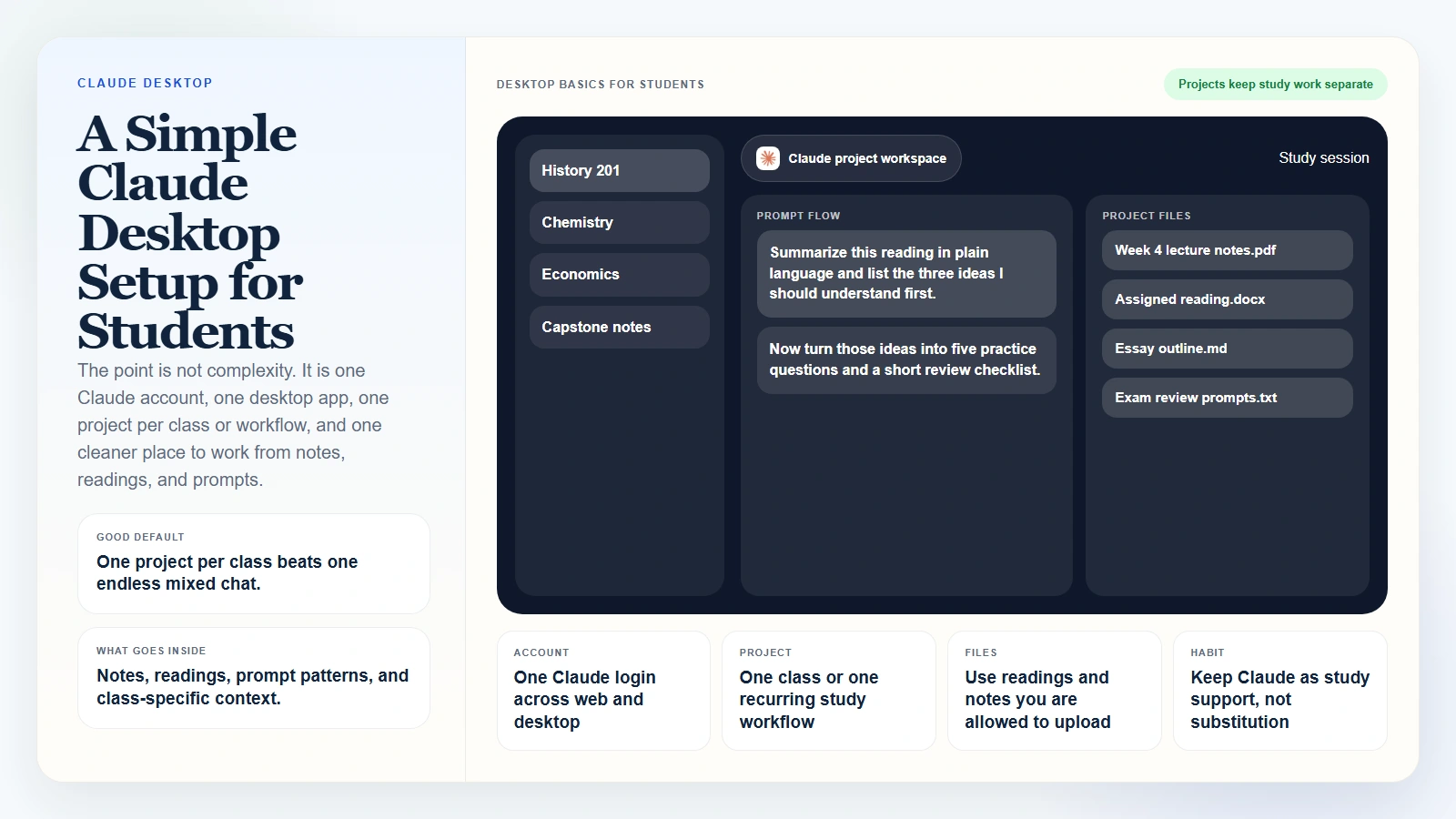 Caption: The goal is not a complicated setup. It is one Claude account, one desktop app, one project per course or workflow, and one cleaner place to work from notes, readings, and recurring prompts.
A simple student desktop setup
| Desktop element | Why it helps a student |
|---|---|
| One project per class | Keeps notes, prompts, and materials separated by subject |
| Project knowledge | Stores syllabus notes, recurring instructions, or reading frameworks |
| File attachments | Lets you work from lecture notes, PDFs, and draft documents |
| Saved prompt patterns | Makes repeated study sessions less inconsistent |
If you want the broader skill behind using AI tools well, What Is AI Fluency and Why It Matters helps frame why structure and review matter more than novelty.
When to Use Claude Chat, Projects, Cowork, and Claude Code
Students get confused here for the same reason many professionals do: Claude is no longer just one chat box.
| Surface | Best for | Student example |
|---|---|---|
| Claude chat | Fast questions, summaries, rewrites, explanations | Explain a concept, rewrite rough notes, test understanding |
| Claude projects | Repeated work with shared context | Keep one biology project with weekly notes, lab instructions, and practice prompts |
| Claude Cowork | Multi-step desktop work in a visual interface | Organize research files, prepare a study pack, or work through a longer document task |
| Claude Code | Advanced file-based or terminal-based workflows | Clean CSV data, inspect a coding project, analyze a repo, or automate a repeatable coding task |
Where Cowork fits
Anthropic’s current desktop guide says Cowork is available on paid Claude plans inside Claude Desktop. The same guide says Cowork brings Claude Code’s agentic capabilities into a visual interface and can access local files directly, work on longer tasks, and produce outputs like spreadsheets and presentations (Install Claude Desktop).
For students, Cowork makes more sense than Claude Code when:
- the work is document-heavy rather than code-heavy
- you want a visual workflow instead of a terminal
- you are organizing research or study material across multiple files
- you still want explicit checkpoints before trusting the output
If you want the dedicated product explanation, Claude Cowork for Beginners is the closest companion guide.
Where Claude Code fits
Claude Code is a later-stage option. Anthropic positions it as an agentic coding tool that can read files, edit files, run commands, and work across a codebase or project folder (Claude Code overview).
That does not make it the default student tool. Claude Code makes sense mainly for:
- computer science students working in real project folders
- data students cleaning or comparing files
- research students with structured datasets
- students building repeatable coding or analysis workflows
If you are writing essays, studying from readings, or preparing presentations, normal Claude chat, projects, or Cowork will usually be the better first move. If you want the CLI context, What Are AI CLIs? Codex, Claude Code, and Gemini CLI Explained covers where Claude Code sits relative to other terminal-first tools.
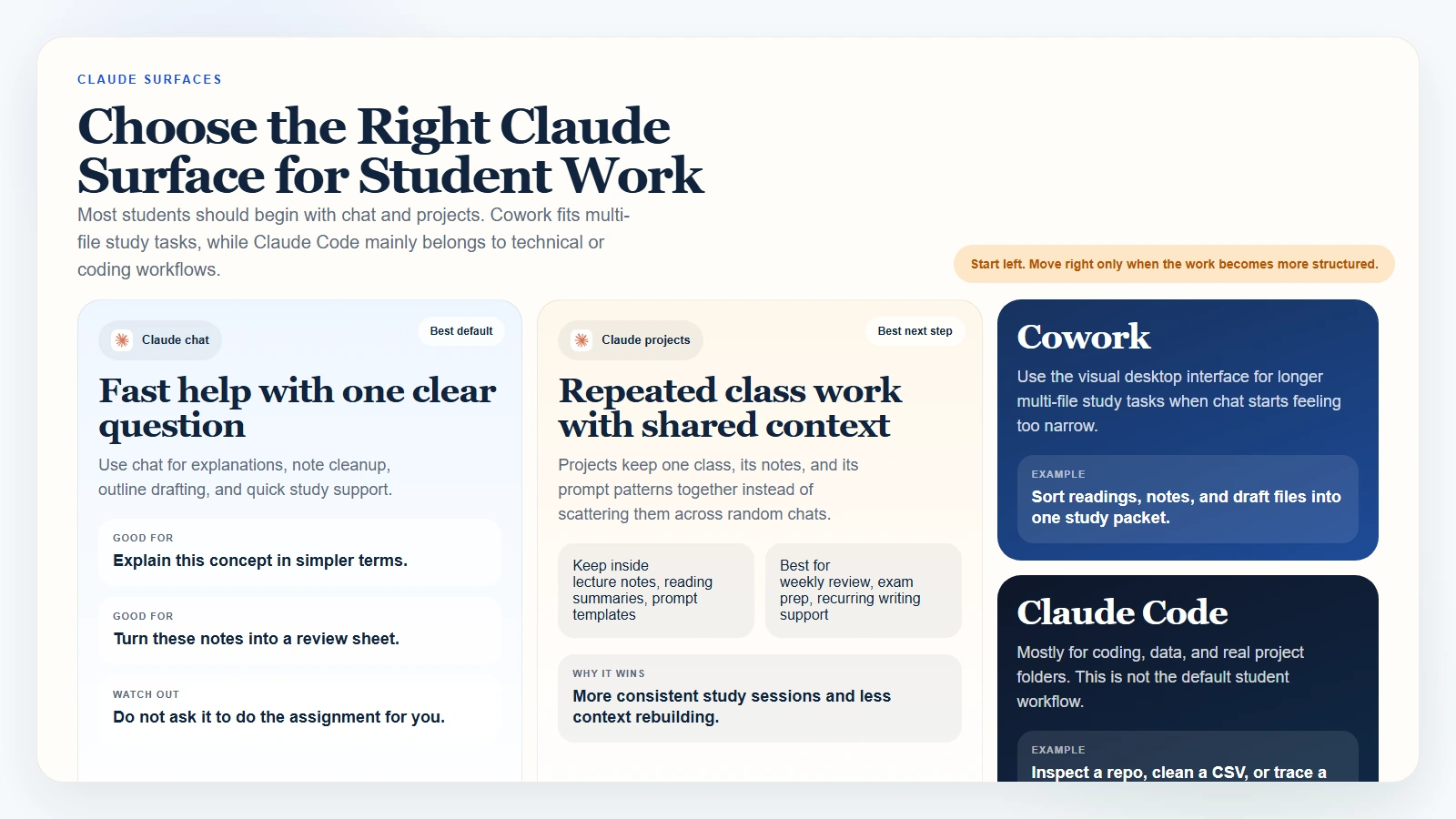 Caption: Most students should begin with chat and projects. Cowork is useful when study work becomes multi-step and file-heavy, while Claude Code is mainly for technical or coding workflows.
Best Student Tasks for Claude
Claude is strongest when the task improves understanding or organization without pretending to replace your own work.
| Task | Best Claude surface to start with | Human work still needed |
|---|---|---|
| Summarizing readings | Chat or project | Read the source yourself and check what matters |
| Explaining a hard concept | Chat | Ask follow-up questions until you genuinely understand it |
| Turning notes into a study guide | Project | Correct mistakes and add your own examples |
| Drafting an essay outline | Chat or project | Build the argument and final wording yourself |
| Revising a draft for clarity | Chat or project | Keep the original ideas and citations under your control |
| Organizing research files | Project or Cowork | Verify sources, quotes, and references |
| Coding-project assistance | Claude Code | Review logic, run tests, and understand the code yourself |
What this means: start on the simplest surface that can do the job. If a normal Claude chat inside a project can handle the work, you do not need Claude Code.
Claude is most useful when it helps you learn something better, not when it helps you hide that you did not learn it.
A Simple Student Workflow in Claude
The safest way to use Claude as a student is a staged workflow. Do not jump straight to the most advanced feature set.
Stage 1. Start with one real class task
Use normal Claude first for small, clear tasks such as:
- summarizing a reading after you have read it
- explaining a lecture concept in simpler terms
- generating five practice questions from your notes
- turning rough notes into a cleaner outline
Stage 2. Move repeated work into a project
Once a pattern repeats, create a project for that class. Add your reusable context, such as:
- course name and topic
- how you want Claude to explain things
- what type of output helps you most
- files you are allowed to use for studying
Stage 3. Use Cowork for longer multi-file study tasks
If you need Claude to work through several readings, notes, and draft files in one longer session, Cowork becomes more useful than plain chat because it is designed for multi-step desktop work.
Stage 4. Use Claude Code only for technical study work
Only move into Claude Code when:
- the task is actually file-based or code-based
- you can review the output yourself
- you are not violating class rules
- you understand that Claude Code is not a shortcut around learning the material
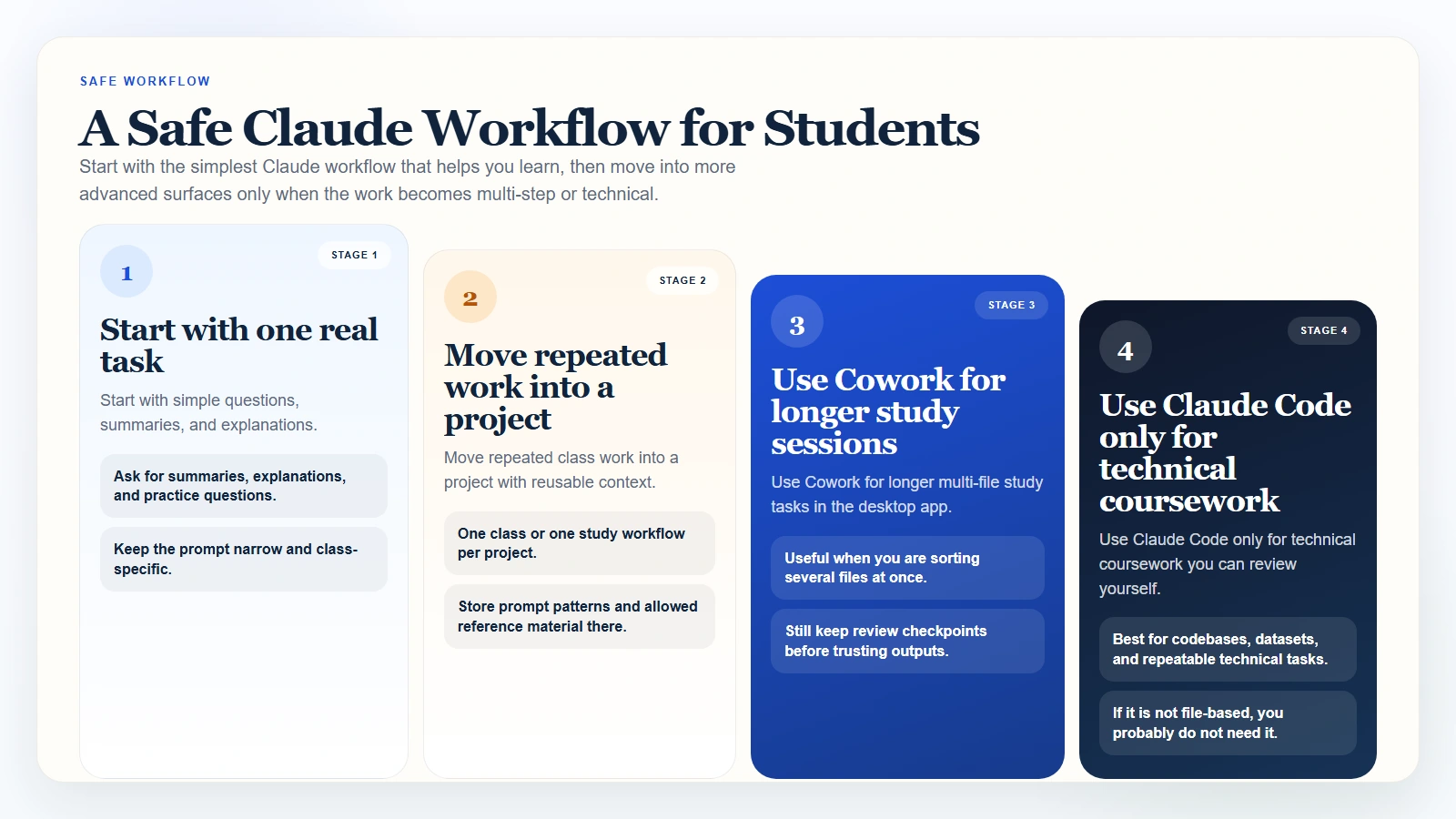 Caption: Start with the simplest Claude workflow that can help you learn. Move into more advanced surfaces only when the work becomes more structured, technical, or multi-step.
One good starter prompt
I am studying this topic for class. Summarize the material in plain language, list the three ideas I should understand first, then give me five practice questions. Do not write an assignment answer for me.
That prompt works because it tells Claude to support learning instead of replacing it.
Worked Example: Turning Class Material into a Study Pack
A practical student use case for Claude is turning scattered class material into one cleaner study pack.
Scenario: you have:
- lecture notes from this week
- one assigned reading in PDF form
- rough bullet notes from class
- a short list of terms you still do not understand
Your goal is not to ask Claude to “do the class.” Your goal is to organize the material so you can study it better.
A good surface choice for each part
- Use Claude chat or a class project to summarize the reading in simpler language.
- Ask Claude to convert your lecture notes into a cleaner topic outline.
- Have Claude generate practice questions and short-answer prompts.
- Use Cowork if you want Claude to help assemble those files into a more structured study packet.
- Use Claude Code only if the coursework is technical enough to involve real coding or data files.
What you can ask Claude to do
- explain difficult vocabulary in plain English
- compare two theories or concepts from the reading
- generate flashcards from your notes
- create a study schedule before an exam
- suggest questions you should ask yourself to check understanding
What you should still do yourself
- read the assigned material yourself
- verify that Claude did not flatten an important nuance
- write your own graded submission unless your course explicitly allows AI drafting
- keep citations, quotes, and factual claims tied to the original source
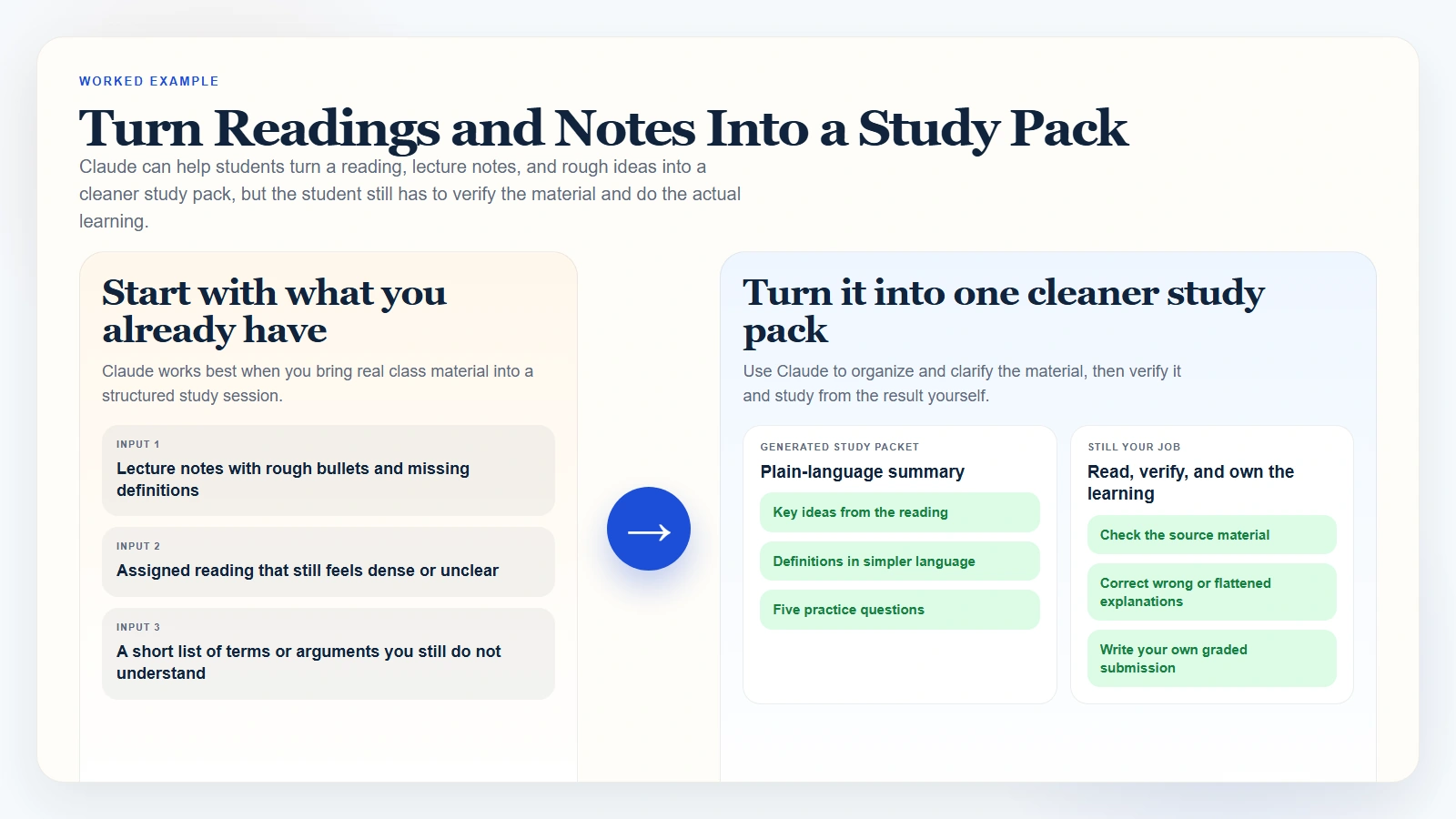 Caption: Claude can help students turn notes, readings, and rough ideas into a cleaner study pack, but the student still has to read, verify, and do the actual learning.
If you find Claude’s output polished but a little too confident, Are AI Tools Accurate? is the right follow-up because the same rule applies in class as at work: fluent language is not proof.
Academic Integrity and Safety Checklist
This is the section students should not skip. Anthropic’s education FAQ explicitly says Claude should not be used to complete assignments that you are expected to do independently, and students should follow their university’s academic-integrity policies (FAQs on Using Claude for Education at Your University).
- Yes: I have checked my course or university policy on AI use before using Claude for graded work.
- Yes: I am using Claude to support understanding, organization, revision, or practice rather than to replace my own assignment work.
- Yes: I can explain the final ideas in my own words without depending on Claude’s phrasing.
- Yes: I am verifying facts, references, and quotes against the original material.
- Yes: I am not uploading private classmate data, confidential research material, or anything I do not have permission to share.
- Yes: If the task is graded, I know whether AI help is allowed, limited, or prohibited.
- Yes: If I use Claude for coding or technical work, I still understand the logic of the final solution.
If you need a broader reality check on where AI helps versus where it fails, What Generative AI Can and Cannot Do is useful background.
FAQ
Do I need Claude Code to use Claude as a student?
No. Most students should start with normal Claude chat, projects, and Claude Desktop basics. Claude Code mainly makes sense for coding, data, or structured file workflows.
Is Claude Desktop useful for students?
Yes. Claude Desktop is useful because it gives you a steadier workspace for projects, files, and longer study sessions than scattered browser tabs.
Can students use free Claude?
Yes, if they are in a supported location and meet the age requirement. Anthropic’s getting-started guide says Claude is available on web, desktop, and mobile, and the projects help article says projects are available to all users, including free users, with free users able to create up to five projects (Get started with Claude, How can I create and manage projects?).
What if my university gives me Claude for Education?
Use your university guidance first. Anthropic says university-sponsored education plans can include projects, file uploads, higher limits, and newer models, but schools may apply their own policies or restrictions (FAQs on Using Claude for Education at Your University).
When should a student use Cowork?
Use Cowork when the task is more than a simple question and you want Claude to help with a multi-step desktop workflow across documents and files in a visual interface.
When should a student use Claude Code?
Use Claude Code when the work is truly technical and file-based, such as programming assignments you are allowed to use AI on, repo walkthroughs, structured data cleanup, or repeatable coding workflows you can inspect yourself.
Conclusion
If you want to use Claude as a student, begin with the simplest workflow that can actually help you learn. Create an account. Learn the desktop basics. Use projects for recurring class work. Then move into Cowork or Claude Code only when the task genuinely needs a more advanced surface.
That sequence is better than starting with the most technical option. Most students do not need terminal-first AI on day one. They need a reliable way to summarize material, understand difficult concepts, organize notes, revise writing, and build better study habits without crossing academic-integrity lines.