
Every time you use ChatGPT, Claude, or Gemini, your prompts travel to a remote server. For most tasks, this is fine. However, if you work with sensitive documents, patient records, financial data, or proprietary code, sending information to the cloud carries real risk. Running AI locally solves that problem. Your data stays on your own computer, and you still get powerful AI capabilities.
In this guide, we explain what local AI means, which tools make it easy for beginners, what hardware you need, and how to set up your first local model in under an hour.
Key Takeaways
- Local AI means the model runs on your computer, not a remote server. Your data never leaves your device.
- Ollama and LM Studio are the two easiest beginner tools for running local LLMs.
- You do not need a powerful gaming PC to start. Many models run on modest hardware.
- Local models are improving rapidly, but they still lag behind the largest cloud models on complex reasoning.
- Running AI locally works best for drafting, summarizing, coding assistance, and brainstorming.
What Does “Running AI Locally” Mean?
When you use a cloud AI tool like ChatGPT, your message is encrypted, sent to OpenAI’s servers, processed by a massive model, and the response is sent back. You never see the model itself. You only see the interface.
Running AI locally means downloading an AI model to your own computer and running it directly. The model file sits on your hard drive. Your prompts are processed by your own CPU or GPU. No internet connection is required after the initial download.
What this means for privacy:
- Your prompts are not logged by a third-party company.
- Sensitive documents can be analyzed without cloud exposure.
- You control when updates happen and which model version you use.
What this means for capability:
- You are limited by your own hardware. Large models need more memory and processing power.
- Local models are often smaller than cloud giants like GPT-4o or Claude 3.7 Sonnet.
- Response speed depends on your computer, not server load.
For a deeper look at how open and closed models differ, see our guide on open source AI models vs closed source models.
Why Run AI Locally?
Local AI is not for everyone. However, there are clear situations where it is the better choice.
Privacy and compliance:
- Healthcare professionals cannot paste patient data into cloud AI without violating HIPAA.
- Lawyers handling confidential case files need to keep documents off external servers.
- Companies with strict data residency rules must process information inside their own networks.
Cost control:
- Cloud AI tools charge per token or require monthly subscriptions.
- Local AI is free after setup. You pay nothing per prompt.
Offline access:
- Travelers, field workers, and people in areas with unreliable internet can still use AI.
- Local models work on airplanes, remote job sites, and during outages.
Customization:
- You can fine-tune local models on your own documents.
- You choose which model to run, when to update it, and how to configure it.
Warning: Local AI is not automatically more secure. If your computer is infected with malware or lacks disk encryption, local files can still be exposed. Local AI protects against cloud leaks, not against all security risks.
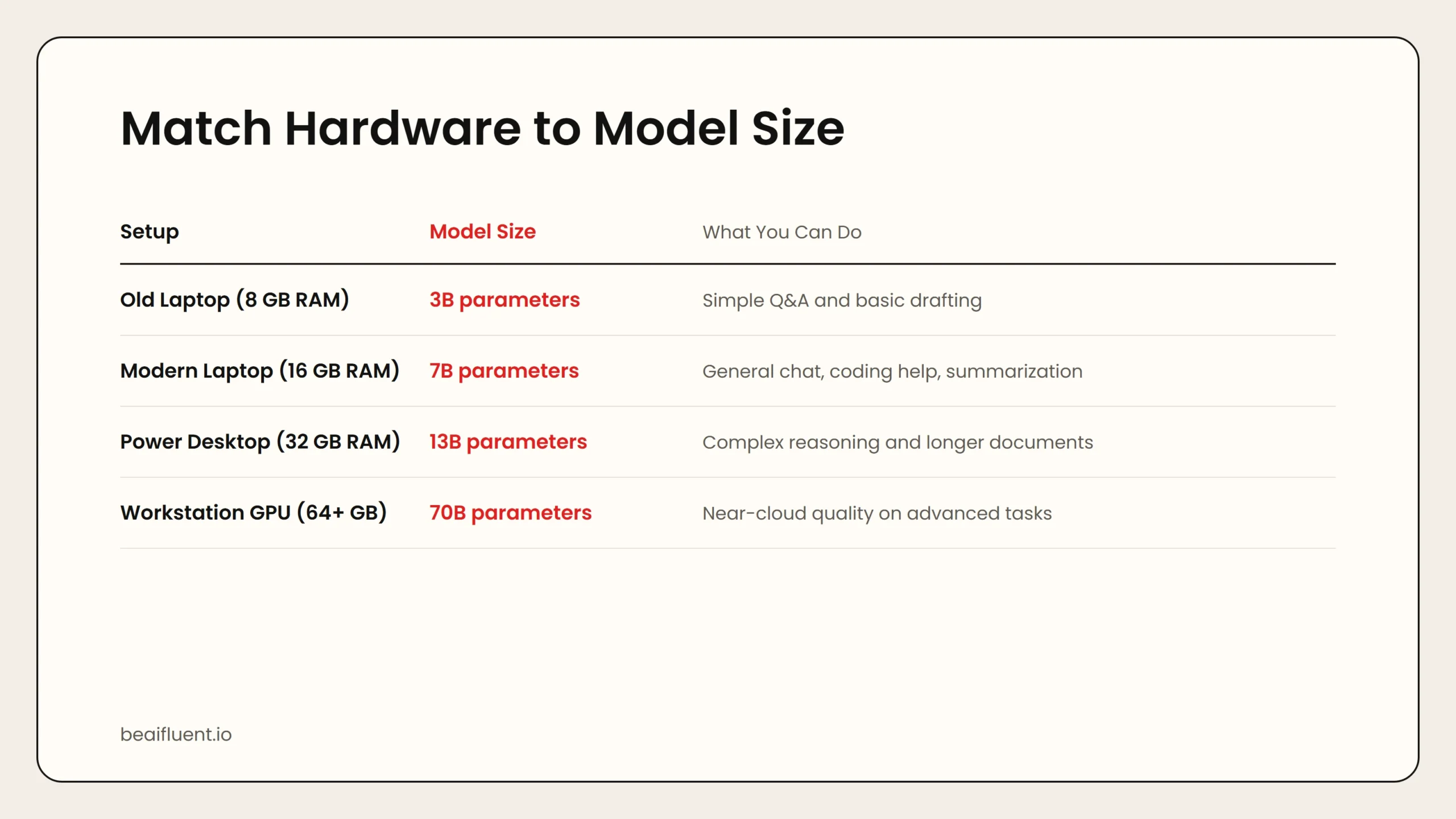 Caption: Match your RAM and GPU to the right model size for smooth local AI performance.
What Hardware Do You Need?
You do not need a $3,000 gaming rig to run AI locally. However, hardware does matter.
Minimum viable setup:
- A modern CPU from the last 4–5 years.
- At least 8 GB of RAM.
- 10 GB of free disk space.
Comfortable setup:
- A CPU with 6+ cores or an Apple Silicon Mac (M1, M2, M3, M4).
- 16 GB of RAM.
- A dedicated GPU with 8+ GB of VRAM for faster responses.
Ideal setup:
- Apple Silicon Mac with 32 GB unified memory, or a PC with a modern NVIDIA GPU (RTX 3060 or better).
- 32 GB of system RAM.
- Fast SSD storage.
Here is a simple guide to which model sizes match which hardware:
| Model Size | RAM Needed | Best For | Typical Speed |
|---|---|---|---|
| 3 billion parameters | 4–8 GB | Simple Q&A, basic drafting | Fast |
| 7 billion parameters | 8–16 GB | General chat, coding help, summarization | Moderate |
| 13 billion parameters | 16–32 GB | Complex reasoning, longer documents | Slower |
| 70 billion parameters | 64+ GB | Advanced analysis, near-cloud quality | Very slow without GPU |
Most beginners should start with a 7 billion parameter model. It balances capability and speed on common laptops.
The Best Tools for Running Local AI
Ollama — Best for Command-Line Users and Developers
Ollama is a free, open-source tool that makes running local LLMs feel as simple as installing an app. You download Ollama, type one command, and the model runs. It supports popular models like Llama 3, Mistral, and Gemma.
Why it stands out:
- One-command installation on macOS, Linux, and Windows.
- Large model library with easy pull commands.
- Native support for tools and API access, so other apps can connect to your local model.
- Lightweight and fast to switch between models.
How to start:
- Download Ollama from ollama.com.
- Open a terminal and run
ollama run llama3. - Wait for the download to complete, then start chatting.
Best for: Developers, technical users, and anyone comfortable with a terminal who wants fast model switching.
Privacy note: Ollama runs entirely offline after download. No data is sent to external servers unless you explicitly enable cloud features.
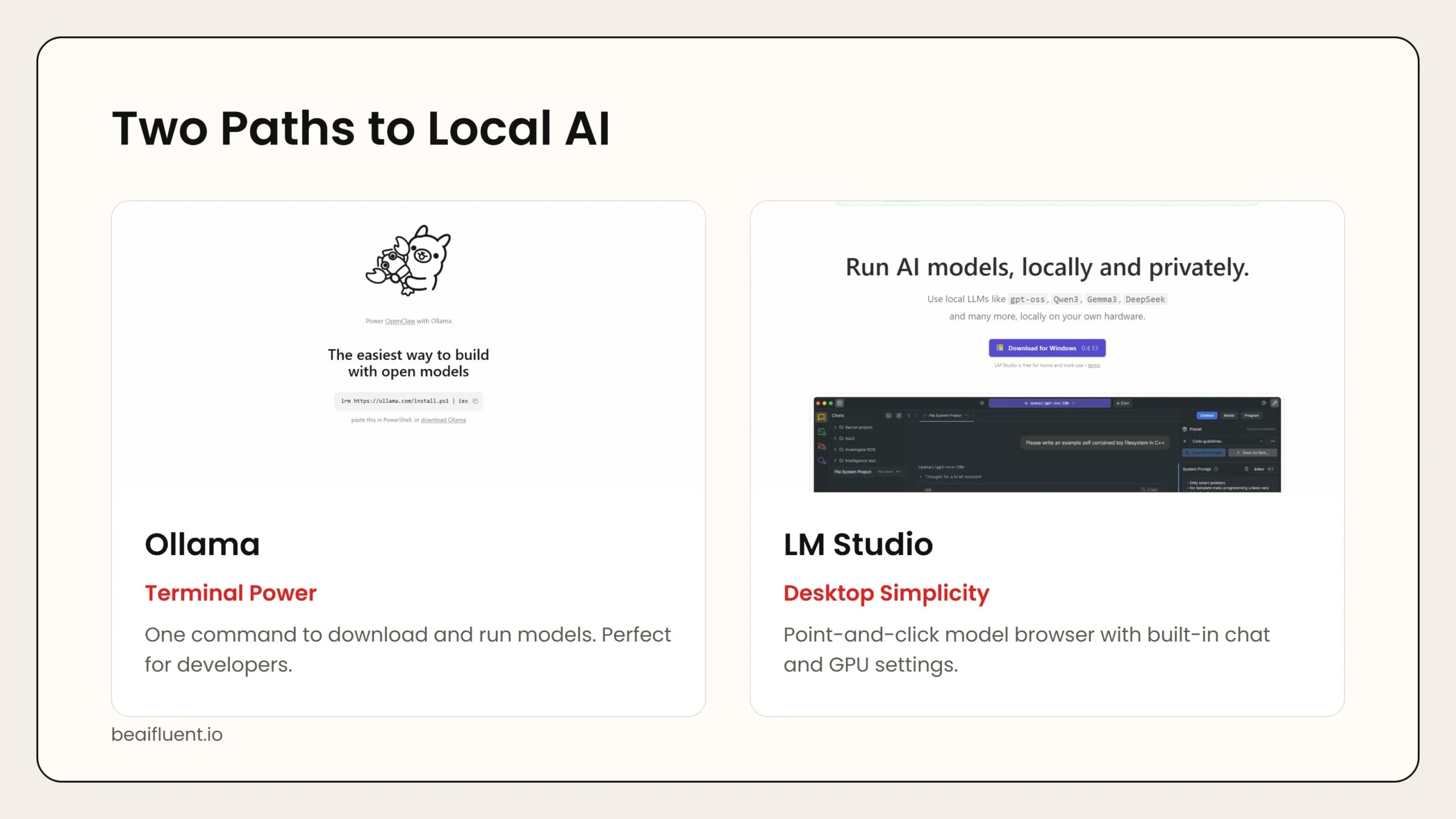 Caption: Ollama offers fast command-line model switching. LM Studio provides a beginner-friendly desktop interface.
LM Studio — Best for Beginners Who Want a Desktop App
LM Studio wraps local LLMs in a polished desktop interface. You browse models, download them with one click, and chat in a familiar window. No terminal required.
Why it stands out:
- Graphical interface for browsing, downloading, and chatting with models.
- Built-in model search with filtering by size and capability.
- GPU acceleration settings are easy to toggle.
- Chat history and conversation management built in.
- Supports loading your own model files if you download them elsewhere.
How to start:
- Download LM Studio from lmstudio.ai.
- Open the app and browse the model catalog.
- Pick a 7B model like Mistral or Llama 3 and click download.
- Start a new chat once the download finishes.
Best for: Non-technical beginners, students, and professionals who want a point-and-click experience.
Privacy note: LM Studio runs models locally by default. The app checks for updates online, but your conversations stay on your device.
Other Notable Options
- GPT4All: A cross-platform desktop app with a focus on privacy and local document chat. Good for chatting with your own files.
- LocalAI: A server-style tool that mimics the OpenAI API. Useful if you want to plug local models into existing apps.
- llamafile: A clever tool that packages a model and runtime into a single executable file. Double-click to run, no installation needed.
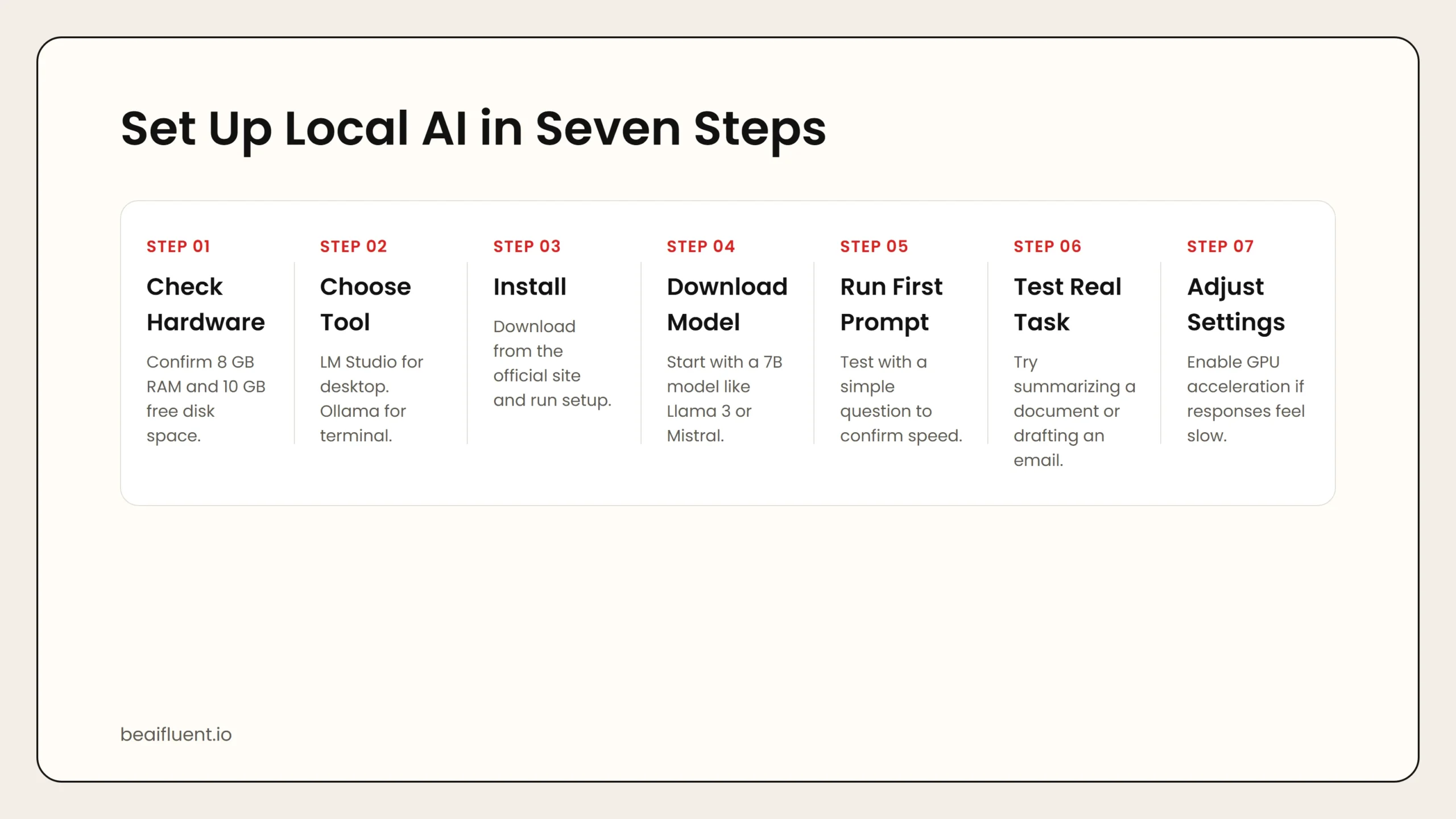 Caption: Check hardware, choose a tool, install, download a model, test prompts, try real tasks, and adjust settings.
A Beginner Workflow for Your First Local AI Setup
If you have never run AI locally before, follow this simple workflow:
- Check your hardware. Confirm you have at least 8 GB of RAM and 10 GB of free disk space.
- Choose a tool. Pick LM Studio if you want a desktop app. Pick Ollama if you are comfortable with the terminal.
- Download and install. Visit the official site and follow the setup guide for your operating system.
- Pick a 7B model. Search for Llama 3, Mistral, or Gemma 2 in the model browser. These are beginner-friendly.
- Run your first prompt. Ask a simple question like “Summarize the benefits of remote work in three bullet points.”
- Test a real task. Try summarizing a document, drafting an email, or explaining a concept.
- Adjust settings if needed. If responses are slow, enable GPU acceleration or choose a smaller model.
Tip: Start with a general-purpose model. Specialized models exist for coding, math, and medical topics, but a good 7B general model handles most everyday tasks well.
What Local AI Can and Cannot Do
Local AI has improved dramatically, but it is not a perfect replacement for cloud tools.
What local AI does well:
- Drafting emails, blog posts, and social content.
- Summarizing long documents and articles.
- Coding assistance and debugging help.
- Brainstorming ideas and outlining projects.
- Translation and rewriting text.
Where local AI struggles:
- Complex multi-step reasoning and advanced math.
- Real-time web search and current events.
- Image generation and multi-modal tasks.
- Very long context windows on smaller hardware.
If your work depends on any of the struggling areas, a hybrid approach works best. Use local AI for sensitive drafting and cloud AI for research and complex analysis.
Comparison: Local AI vs Cloud AI
| Factor | Local AI | Cloud AI |
|---|---|---|
| Privacy | Data stays on your device | Data sent to company servers |
| Cost | Free after setup | Subscription or per-use pricing |
| Hardware needed | Moderate to high | None |
| Setup complexity | Medium | Low |
| Model quality | Good, improving fast | Best available |
| Internet required | No | Yes |
| Customization | Full control | Limited to provider settings |
Use this table to decide which fits your current needs. Many users end up using both: local AI for private work and cloud AI for everything else.
Frequently Asked Questions
Is running AI locally legal?
Yes. Most open-weight models are released under licenses that permit personal and commercial use. However, always read the specific license for the model you download.
Can I use local AI for work?
Yes, if your employer allows it. Local AI is especially useful for industries with strict data rules. Confirm your IT policy before installing software on a work device.
Will local AI work on my old laptop?
Maybe. A laptop from the last 5 years with 8 GB of RAM can run smaller models. For the best experience, 16 GB of RAM and a modern CPU or GPU are recommended.
Do I need an internet connection?
Only for the initial download. After the model is installed, local AI works entirely offline.
Are local models as smart as ChatGPT?
The largest local models come close, but most consumer hardware runs smaller models that are less capable on complex tasks. For everyday drafting and summarization, the gap is small.
Sources
- Ollama official documentation
- LM Studio official site
- GPT4All by Nomic AI
- LocalAI GitHub repository
- Mozilla llamafile project
If you are just getting started with AI, our guide on how to start using AI as a complete beginner covers cloud tools first, which are the easiest entry point. Once you are comfortable, local AI becomes a powerful next step for privacy-sensitive work.