
PDFs are the default format for research papers, legal contracts, financial reports, and user manuals. They are also notoriously hard to search, summarize, and understand quickly. The best AI PDF tools in 2026 solve that problem. They let you upload a document and ask questions in plain English, extract key data points, and generate summaries without reading every page.
In this guide, we compare the top AI PDF tools: ChatPDF, NotebookLM, Humata, Claude Projects, and Adobe Acrobat AI Assistant. We cover what each tool does best, how much it costs, and which one fits your workflow.
Key Takeaways
- ChatPDF is the fastest free option for quick single-document Q&A.
- NotebookLM offers the best multi-document research with strict citation grounding.
- Humata provides strong page-level citations and team collaboration features.
- Claude Projects handles the longest documents with a 200K token context window.
- Adobe Acrobat AI Assistant integrates directly into the most widely used PDF platform.
What to Look for in an AI PDF Tool
Before choosing a tool, think about your real use case. Students need to analyze research papers. Legal teams review contracts. Consultants extract insights from long reports. Each use case needs different capabilities.
Here are the features that matter most:
- Document upload limits. Check page counts, file sizes, and daily upload caps on free tiers.
- Citation accuracy. The best tools link answers back to specific pages or passages.
- Multi-document support. Some tools chat with one PDF at a time. Others let you query across an entire library.
- Export options. Look for summary export, chat history saving, and integration with note-taking apps.
- Privacy and security. Sensitive documents need encryption, zero-retention policies, and SOC 2 compliance.
Additionally, consider whether you need a standalone tool or an integrated feature. Claude and ChatGPT handle PDFs as part of broader conversations. Dedicated tools like ChatPDF and Humata focus only on documents.
The Top 5 AI PDF Tools Compared
1. ChatPDF — Best for Quick, Free Single-Document Q&A
ChatPDF is the simplest way to start chatting with a PDF. No account required for the free tier. Upload a document, get an automatic summary, and ask questions with clickable citations that jump to the relevant section.
Why it stands out:
- No sign-up needed for free use.
- Automatic document summary upon upload.
- Clickable source citations link directly to relevant passages.
- Side-by-side chat and document view for easy verification.
- Supports PDF, Word, PowerPoint, Markdown, and text files.
Pricing: Free tier allows 2 PDFs per day, 120 pages per PDF, 10 MB file size limit. Plus plan at $5 per month unlocks unlimited PDFs, up to 2,000 pages per PDF, 32 MB files, and multi-document folders.
Best for: Students and professionals who need fast answers from individual documents without setup or subscriptions.
Privacy note: ChatPDF processes documents in the cloud. Avoid uploading confidential legal, medical, or financial documents on the free tier.
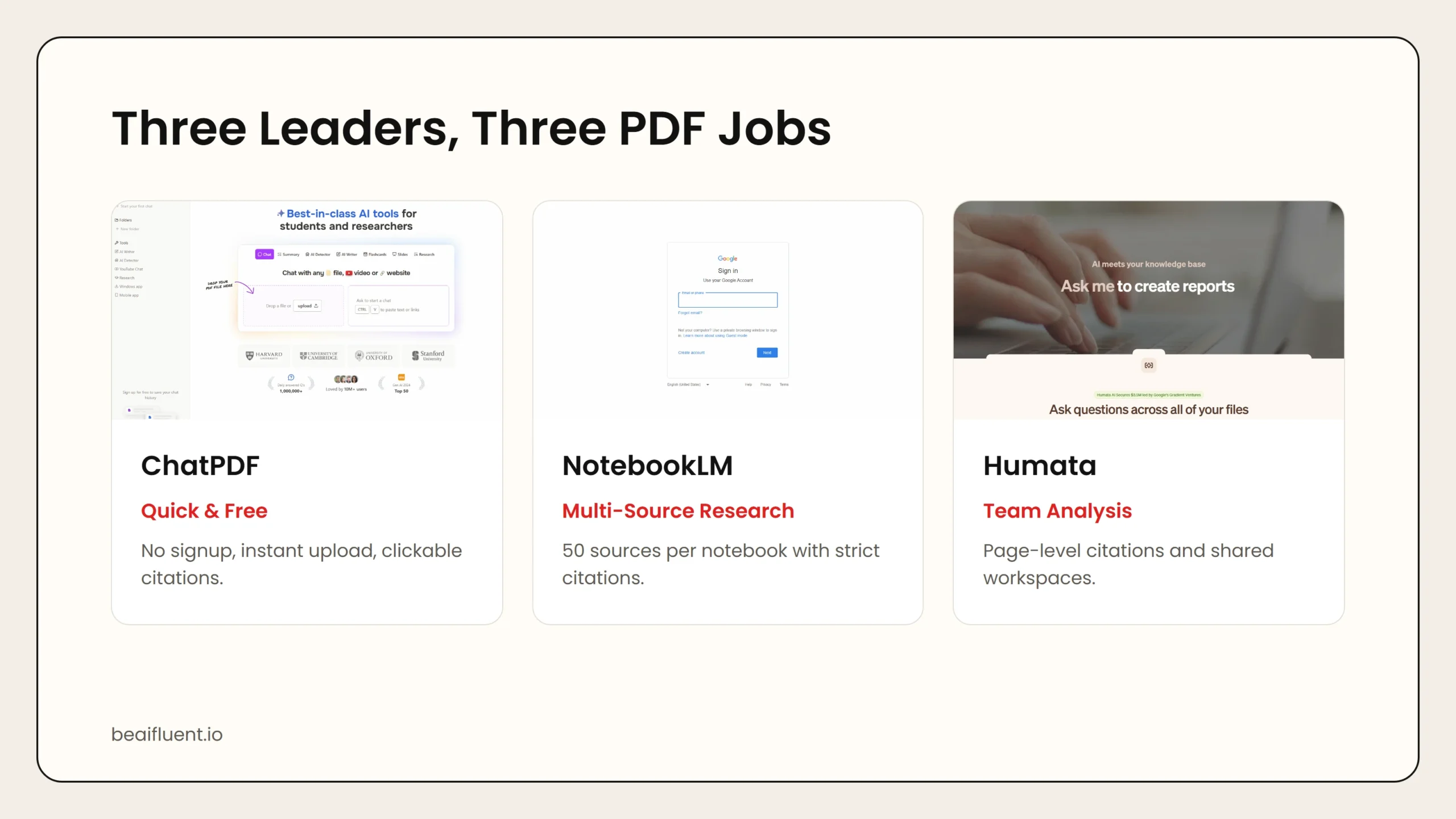 Caption: ChatPDF leads on simplicity and free access. NotebookLM wins on multi-document research with verified citations. Humata dominates team collaboration and page-level accuracy.
2. NotebookLM — Best for Multi-Document Research
NotebookLM is Google’s AI research assistant. You upload up to 50 sources per notebook, and it answers questions using only those documents. Every response includes inline citations pointing to the exact source passage.
Why it stands out:
- Strict source grounding prevents hallucinations by limiting answers to uploaded documents.
- Supports up to 50 sources and 500,000 words per notebook.
- Generates audio discussions, timelines, and study guides from sources.
- Free with a Google account.
Pricing: Free. Requires a Google account.
Best for: Students, researchers, and writers who need to synthesize information across multiple papers, articles, or reports with strict citation fidelity.
Privacy note: NotebookLM processes documents on Google servers. Do not upload sensitive client data or proprietary research unless your organization approves Google cloud services.
3. Humata — Best for Team Document Analysis
Humata focuses on professional and enterprise use cases. It analyzes contracts, reports, and compliance documents with page-level citations and team collaboration features.
Why it stands out:
- Strong page-level citations for professional document review.
- Team workspaces with shared sources and conversations.
- Handles long documents well with enterprise security options.
- Embeddable AI for integrating document chat into websites.
Pricing: Free tier includes 60 pages per month. Student plan at $1.99 per month. Expert at $9.99 per month. Team at $49 per user per month.
Best for: Legal teams, consulting firms, and research groups that need to analyze documents collaboratively with audit-ready citations.
Privacy note: Humata offers enterprise-grade encryption and role-based access controls. Review their data retention policy before uploading confidential materials.
4. Claude Projects — Best for Very Long Documents
Claude’s Projects feature lets you upload documents into a persistent knowledge base with a 200,000 token context window. That is roughly 150,000 words of project knowledge, enough for entire books or large report sets.
Why it stands out:
- Largest context window among consumer AI tools.
- Persistent project memory across multiple conversations.
- Strong reasoning and synthesis across long, complex documents.
- No separate app needed if you already use Claude.
Pricing: Requires Claude Pro at $20 per month.
Best for: Users who already subscribe to Claude and need to analyze very long documents or maintain a knowledge base across multiple PDFs.
Privacy note: Claude processes documents through Anthropic’s cloud infrastructure. Anthropic offers zero data retention for enterprise customers. Free and Pro users should review the standard privacy policy.
5. Adobe Acrobat AI Assistant — Best for Existing Adobe Users
Adobe integrated AI directly into Acrobat, the world’s most widely used PDF platform. You can chat with PDFs, generate summaries, and ask questions without leaving the app you already use.
Why it stands out:
- Native integration inside Adobe Acrobat.
- Full PDF editing, e-signatures, and compliance features alongside AI chat.
- Handles images, charts, and tables within PDFs.
- Enterprise security and admin controls for teams.
Pricing: AI Assistant add-on starts at approximately $4.99 per month. Requires an existing Acrobat subscription.
Best for: Enterprise teams and professionals already paying for Adobe Acrobat who want AI features without switching platforms.
Privacy note: Adobe processes AI queries in the cloud under their standard enterprise security framework. Confirm your organization’s Adobe compliance agreement covers AI features.
Side-by-Side Comparison
| Tool | Free Tier | Starting Price | Best For | Max Document Size |
|---|---|---|---|---|
| ChatPDF | 2 PDFs/day, 120 pages | $5/mo | Quick single-document Q&A | 2,000 pages (Plus) |
| NotebookLM | 50 sources, 500K words | Free | Multi-document research | 50 sources per notebook |
| Humata | 60 pages/month | $1.99/mo (Student) | Team collaboration | Unlimited (Pro) |
| Claude Projects | N/A (requires Pro) | $20/mo (Claude Pro) | Very long documents | ~500 pages / 32 MB |
| Adobe Acrobat AI | Limited queries | $4.99/mo add-on | Existing Adobe users | 600 pages / 100 MB |
Use this table to match your budget and workflow. If you need free and fast, start with ChatPDF. If you research across many sources, use NotebookLM. If you analyze contracts professionally, evaluate Humata.
How to Choose the Right Tool for Your Use Case
Different users need different capabilities. Here is a practical matching guide:
- Student analyzing research papers → NotebookLM (free, multi-source, citations) or ChatPDF (fast, no signup).
- Lawyer reviewing contracts → Humata (page-level citations, team sharing) or Adobe Acrobat AI (integrated with existing workflow).
- Consultant extracting insights from reports → Claude Projects (long documents, reasoning) or NotebookLM (synthesis across sources).
- Team sharing document analysis → Humata Team plan or NotebookLM shared notebooks.
- Casual user with occasional PDFs → ChatPDF free tier covers most needs.
Tip: If you only need to chat with PDFs occasionally, start with free tools. Upgrade when you hit usage limits or need team features.
A Simple Workflow for Analyzing PDFs with AI
Follow these steps to extract insights from documents without getting overwhelmed:
- Upload the document. Pick a tool that matches your file size and privacy needs.
- Read the auto-summary. Most tools generate a summary on upload. Use it to orient yourself.
- Ask specific questions. Instead of “What is this about?” ask “What does section 4 say about liability?” or “List the three main recommendations.”
- Verify citations. Click through to the source passages and confirm the AI interpreted the text correctly.
- Export key insights. Save summaries, quotes, and Q&A pairs to your note-taking system.
- Delete sensitive uploads. If you uploaded confidential documents, remove them from the tool after analysis.
Warning: AI PDF tools can misinterpret tables, charts, and scanned images. Always verify numerical data and visual information against the original document.
Common Mistakes to Avoid
Even with powerful tools, users make predictable errors:
- Uploading confidential documents to free tiers. Free tools may use your data for model training. Use enterprise plans or local tools for sensitive material.
- Trusting summaries without verification. AI summaries capture main themes but can miss nuance, exceptions, and caveats.
- Asking vague questions. Specific questions get better answers than broad ones.
- Ignoring file format limits. Some tools struggle with scanned PDFs that lack selectable text. Use OCR first if needed.
- Relying on one tool for everything. No single PDF tool excels at every task. Match the tool to the job.
Frequently Asked Questions
Can AI PDF tools read scanned documents?
Some can. Humata and AskYourPDF offer OCR on paid plans. Tools without OCR require text-based PDFs. Convert scanned documents with an OCR tool before uploading.
Is my data private when I upload a PDF to an AI tool?
It depends on the tool and plan. Enterprise plans typically offer better privacy. Free plans may retain data for model improvement. Read the privacy policy before uploading sensitive documents.
Can I chat with multiple PDFs at once?
Yes, on certain tools. NotebookLM supports up to 50 sources per notebook. Humata offers multi-document analysis on paid plans. ChatPDF requires the Plus plan for multi-document folders.
Which AI PDF tool is best for students?
ChatPDF is best for quick, free single-document questions. NotebookLM is best for research across multiple sources. Humata offers the cheapest paid student plan at $1.99 per month.
Do AI PDF tools work with Word, PowerPoint, and other formats?
Many do. ChatPDF supports Word, PowerPoint, Markdown, and text files. Claude and ChatGPT also accept various formats. Always check the upload options for your specific tool.
Sources
- ChatPDF official site
- Google NotebookLM
- Humata AI official site
- Claude by Anthropic
- Adobe Acrobat AI Assistant
If you want to build a full research workflow around AI document analysis, our guide on how to use AI workflows for research, notes, meetings, and planning shows how to connect PDF tools to broader knowledge management systems.