
Accessibility technology has traditionally been expensive, specialized, and slow to improve. AI is changing that. In 2026, a blind person can point their phone at a document and hear it read aloud in seconds. A deaf professional can join any video call and read real-time captions. Someone with motor impairments can control their computer using only their voice.
These are not future technologies. They are available today, often for free or at low cost. This guide covers the best AI accessibility tools, what they do, and how they fit into real work environments.
Key Takeaways
- Be My Eyes with GPT-4o provides real-time visual assistance for blind and low-vision users.
- Otter.ai and Speechify lead on speech-to-text and text-to-speech for deaf and hard-of-hearing professionals.
- Voice control tools like Apple Voice Control and Windows Speech Recognition enable hands-free computing.
- AI captioning is now standard in Zoom, Teams, and Google Meet, but quality varies by platform.
- Many of the best accessibility tools are free or built into devices people already own.
What AI Accessibility Tools Can Do
AI accessibility tools fall into four main categories based on the barrier they address:
Vision assistance:
- Describe scenes, objects, and text from camera feeds.
- Read documents, labels, and signs aloud.
- Navigate indoor spaces and identify faces.
Hearing assistance:
- Transcribe speech to text in real time.
- Generate captions for live and recorded video.
- Translate sign language into text or speech.
Motor assistance:
- Control devices using voice commands.
- Predict text input for faster typing with limited mobility.
- Automate repetitive actions through gaze or head tracking.
Cognitive assistance:
- Simplify complex text for easier reading.
- Summarize long documents.
- Organize tasks and schedules.
The Top 5 AI Accessibility Tools Compared
1. Be My Eyes — Best for Real-Time Visual Assistance
Be My Eyes connects blind and low-vision users with sighted volunteers through video calls. In 2024, the platform integrated GPT-4o, allowing users to get instant AI-powered descriptions of anything they point their camera at without waiting for a human volunteer.
Why it stands out:
- AI describes objects, text, scenes, and navigation cues in real time.
- Human volunteer network available for complex or sensitive tasks.
- Free for all users.
- Available in 150-plus languages.
- Works on iOS and Android.
Pricing: Free.
Best for: Blind and low-vision individuals who need immediate visual information for daily tasks, work documents, and navigation.
Limitation: AI descriptions can miss subtle visual details. Complex diagrams and charts may require human assistance.
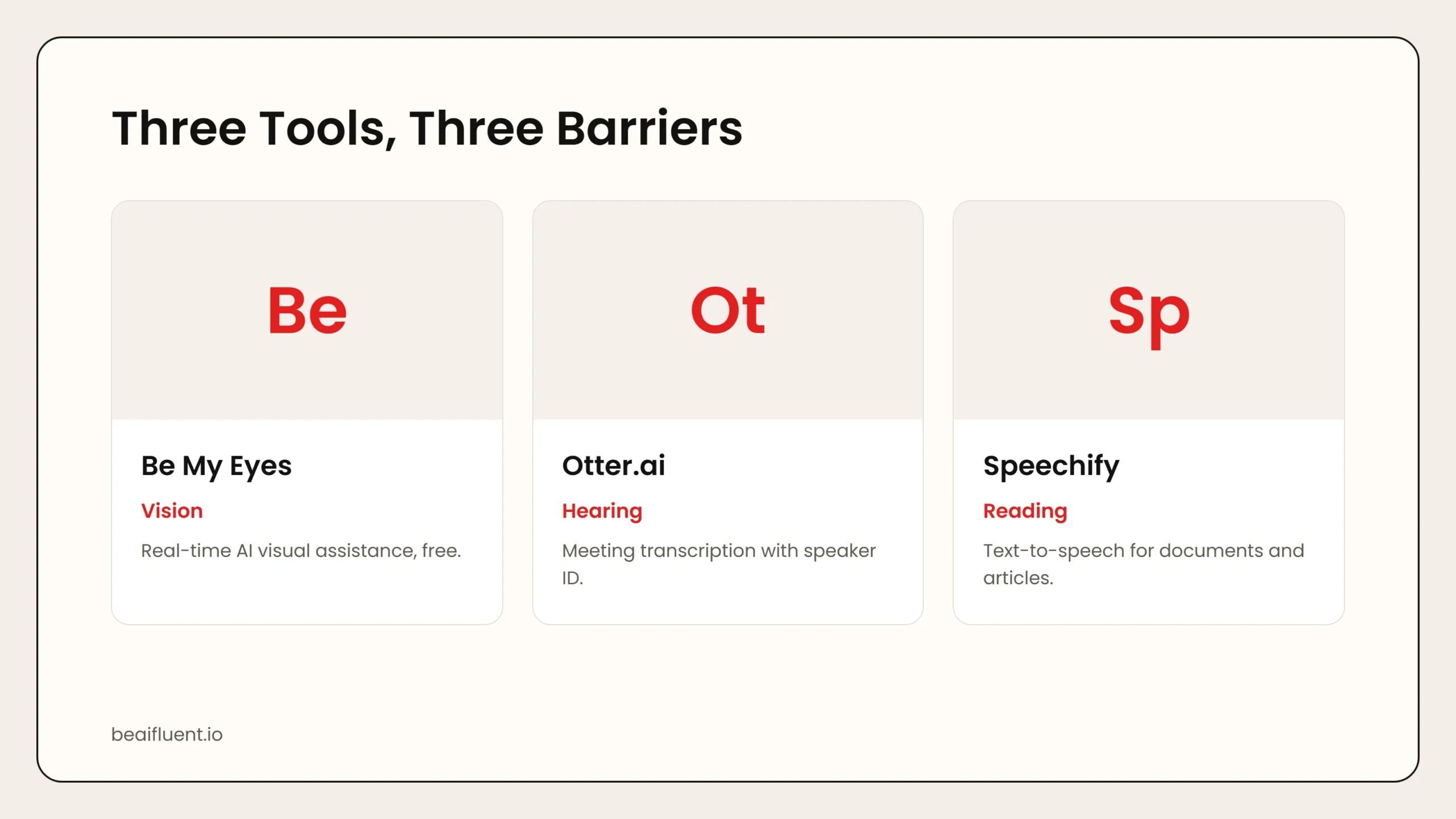 Caption: Be My Eyes provides real-time vision assistance. Otter.ai dominates meeting transcription. Speechify leads on text-to-speech consumption.
2. Otter.ai — Best for Meeting Transcription
Otter.ai transcribes meetings, lectures, and conversations in real time with speaker identification. For deaf and hard-of-hearing professionals, it transforms inaccessible audio into searchable, shareable text.
Why it stands out:
- Real-time transcription with 85 to 95 percent accuracy under optimal conditions.
- Automatic speaker identification for multi-person meetings.
- OtterPilot auto-joins Zoom, Google Meet, and Microsoft Teams calls.
- Searchable transcripts with keyword highlighting.
- Collaborative features: highlight, comment, and assign action items.
Pricing: Free tier includes 300 minutes per month. Pro at $8.33 per month (annual) for 1,200 minutes. Business at $20 per user per month for 6,000 minutes.
Best for: Professionals who attend frequent meetings, students in lecture halls, and anyone who needs accurate, searchable records of spoken content.
Limitation: Primarily supports English. Accuracy drops with heavy accents, background noise, or technical jargon.
3. Speechify — Best for Text-to-Speech
Speechify converts written text into natural-sounding speech, allowing users to listen to documents, articles, and emails instead of reading them. It is particularly valuable for people with dyslexia, ADHD, and visual impairments.
Why it stands out:
- Natural-sounding AI voices with HD quality options.
- Speed control up to 4.5x while preserving clarity.
- Syncs across web, iOS, Android, and Mac.
- Reads PDFs, articles, emails, and physical books via camera scan.
- Supports 30-plus languages.
Pricing: Free tier with limited voices. Premium at $139 per year. Audiobooks plan at $199 per year.
Best for: People with dyslexia, ADHD, visual impairments, and anyone who prefers auditory learning or wants to consume content while multitasking.
4. Apple Voice Control and Windows Speech Recognition — Best for Hands-Free Computing
Built into macOS and Windows, these voice control systems allow users to navigate their computers, dictate text, and execute commands without touching a keyboard or mouse.
Why they stand out:
- Built into operating systems at no extra cost.
- Continuously improving accuracy through machine learning.
- Full device control: open apps, click buttons, scroll pages.
- Custom vocabulary training for industry-specific terms.
- Works offline for basic commands.
Pricing: Free (included in macOS and Windows).
Best for: People with motor impairments, repetitive strain injuries, and anyone who needs hands-free computer operation.
Limitation: Learning curve for command vocabulary. Complex tasks still require manual intervention.
5. AI Live Captions in Video Platforms — Best for Real-Time Captioning
Zoom, Microsoft Teams, and Google Meet all offer AI-generated live captions. Quality has improved dramatically, with accuracy rates above 90 percent for clear audio in supported languages.
Why they stand out:
- Built into platforms most workplaces already use.
- No additional cost for basic captioning.
- Supports multiple languages simultaneously in some platforms.
- Transcript saving for post-meeting review.
Pricing: Free in basic tiers of all three platforms.
Best for: Deaf and hard-of-hearing employees participating in video meetings, and anyone who prefers reading over listening.
Limitation: Accuracy drops with poor audio, multiple speakers talking simultaneously, and strong accents. Technical terminology is often misrecognized.
Side-by-Side Comparison
| Tool | Cost | Barrier Addressed | Best For |
|---|---|---|---|
| Be My Eyes | Free | Vision | Real-time visual description |
| Otter.ai | Free–$20/mo | Hearing | Meeting transcription |
| Speechify | Free–$139/yr | Reading/Dyslexia | Text-to-speech consumption |
| Apple/Windows Voice Control | Free | Motor | Hands-free device control |
| Platform Live Captions | Free | Hearing | Video meeting accessibility |
Use this table to match tools to needs. Many users combine multiple tools: Otter.ai for meetings, Speechify for reading, and platform captions for calls.
How to Build an Accessible Workplace with AI
Organizations that want to support employees with disabilities can take practical steps without massive budgets:
- Audit your current tools. Check whether your existing software has built-in accessibility features you are not using.
- Standardize captioning. Enable AI captions by default in all video meetings. The benefit extends beyond deaf employees to non-native speakers and quiet environments.
- Provide transcription access. Subscribe to Otter.ai Business for meeting-heavy teams. The searchable archive benefits everyone.
- Offer flexible reading tools. Speechify or built-in screen readers help employees with dyslexia and visual impairments process written content faster.
- Train teams on accessibility. Many accessibility features go unused because people do not know they exist. A 30-minute training session unlocks tools already available.
Tip: Accessibility improvements often benefit the entire team, not just individuals with disabilities. Captions help in noisy offices. Voice control helps during repetitive strain recovery. Transcripts help anyone who missed a meeting.
A Simple Workflow for Daily Accessibility
Follow these steps to integrate AI accessibility tools into a daily routine:
- Morning email review. Use Speechify to listen to emails while getting ready.
- Meetings. Enable live captions. Run Otter.ai in the background for a searchable transcript.
- Document review. Use built-in screen readers or Speechify for long reports.
- Navigation and objects. Use Be My Eyes or built-in camera description for physical environments.
- Hands-free tasks. Use voice control for note-taking, calendar management, and web browsing.
Warning: AI accessibility tools are powerful but not perfect. Always verify critical information. Transcription errors can misrepresent decisions. Vision descriptions can miss hazards. Use these tools as aids, not replacements for human judgment in high-stakes situations.
Common Mistakes to Avoid
Even well-intentioned accessibility efforts fall short:
- Assuming one tool fits all. A deaf employee and a blind employee need entirely different accommodations. Ask individuals what works for them.
- Buying tools without training. The best software is useless if no one knows how to use it. Invest in onboarding.
- Relying solely on AI for critical content. Important legal, medical, or safety information should always have human verification.
- Forgetting about privacy. Some accessibility tools process data in the cloud. Ensure compliance with your organization’s data policies.
- Treating accessibility as an afterthought. Build it into procurement and workflow design from the start.
Frequently Asked Questions
Are AI accessibility tools as good as human assistance?
For many daily tasks, yes. For complex, nuanced, or high-stakes situations, human assistance remains essential. The best approach combines AI speed with human judgment.
How much do AI accessibility tools cost?
Many are free. Be My Eyes, platform captions, and built-in voice control cost nothing. Otter.ai and Speechify offer free tiers. Premium plans range from $8 to $20 per month.
Can AI tools replace screen readers like JAWS or NVDA?
Not entirely. Built-in screen readers (VoiceOver, Narrator) and AI tools like Be My Eyes complement specialized software but do not yet match the depth of JAWS or NVDA for complex workflows.
Do these tools work in languages other than English?
Be My Eyes supports 150-plus languages. Speechify supports 30-plus. Otter.ai works best in English. Platform captions vary by language. Check specific language support before relying on a tool.
Is it safe to use AI tools with confidential work information?
Review each tool’s privacy policy. Built-in OS features process data locally. Cloud-based tools like Otter.ai store transcripts on their servers. Enterprise plans often offer enhanced security and data retention controls.
Sources
- Be My Eyes official site
- Otter.ai features and pricing
- Speechify
- Apple Accessibility
- Microsoft Accessibility
If you are new to AI, our guide on how to start using AI as a complete beginner covers the fundamentals. For understanding AI reliability, see are AI tools accurate.