
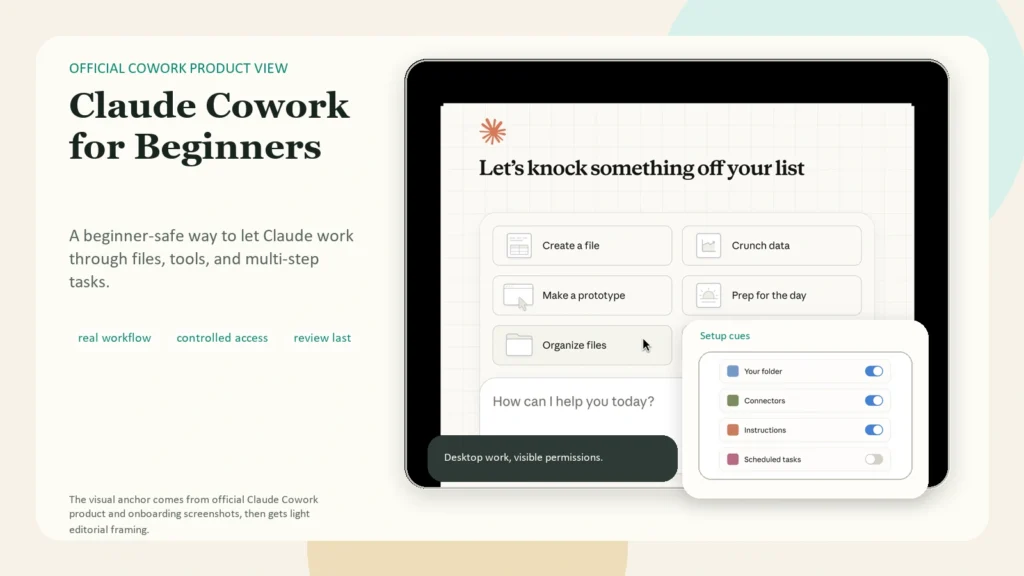
Claude Cowork for Beginners: How to Get Started Without Coding
Claude Cowork is a desktop-based agent workflow inside Claude that can work through files, folders, tools, and multi-step tasks instead of only answering messages. For beginners, the simplest way to think about it is this: regular Claude chat helps you think, but Cowork helps you do. If you want Claude to help review a folder, prepare a recurring report, or work through a task across several steps, Cowork is the better fit.
This guide is for non-coders who want a current, practical explanation. As of April 9, 2026, Cowork is available on paid Claude plans in Claude Desktop for macOS and Windows. That matters because many earlier posts still describe the January 2026 preview, when Cowork was limited to Max users on macOS only. Those articles are already outdated. Anthropic’s product page and current Help Center docs are the safest references.
Key Takeaways
- Claude Cowork is best for multi-step work, not simple Q&A.
- Beginners should start with one narrow folder and one clearly defined outcome.
- Cowork is different from regular chat because it can act on files and tools you explicitly allow.
- You should review every output before you trust, share, or publish it.
- Features like projects, recurring tasks, plugins, mobile task handoff, and computer use are useful, but they are not the best starting point for day one.
Table of Contents
- What is Claude Cowork?
- Claude Cowork vs Claude chat
- Who should use Claude Cowork?
- What do you need before you start?
- How to start with Claude Cowork
- A good first beginner workflow
- How to use Claude Cowork safely
- Features to explore after the basics
- Common beginner mistakes
- FAQ
What Is Claude Cowork?
According to Anthropic’s Cowork product page, Cowork is an agentic system for knowledge work that runs on desktop, connects to local files and applications, and completes multi-step tasks from start to finish. The user sets the goal. Cowork works through the steps.
That description sounds abstract until you translate it into beginner language. In practice, Cowork is useful when your task looks like this:
- open a folder
- read several files
- compare or organize the material
- create an output
- keep working until the result is usable
For example, you might ask Cowork to:
- review a research folder and summarize the main themes
- turn raw notes into a clean brief
- gather updates for a weekly operations report
- organize working files inside a project
- prepare a first draft you will review and edit
Cowork is still labeled a research preview, so it should be treated as a capable work assistant, not a fully autonomous system you leave unchecked. That matters even more now that new features have expanded quickly. The release notes show a fast rollout:
- January 12, 2026: Cowork launched in preview for Max users on Claude Desktop for macOS.
- January 16, 2026: the preview expanded to Pro plans.
- February 24, 2026: plugins and admin controls were added.
- March 17, 2026: mobile task assignment in a persistent thread began rolling out for Pro and Max.
- March 23, 2026: computer use was added in research preview for Cowork and Claude Code.
That timeline is why date context matters. If you are reading advice that only mentions Max or only mentions macOS, it is probably referencing the January launch state rather than the current one.
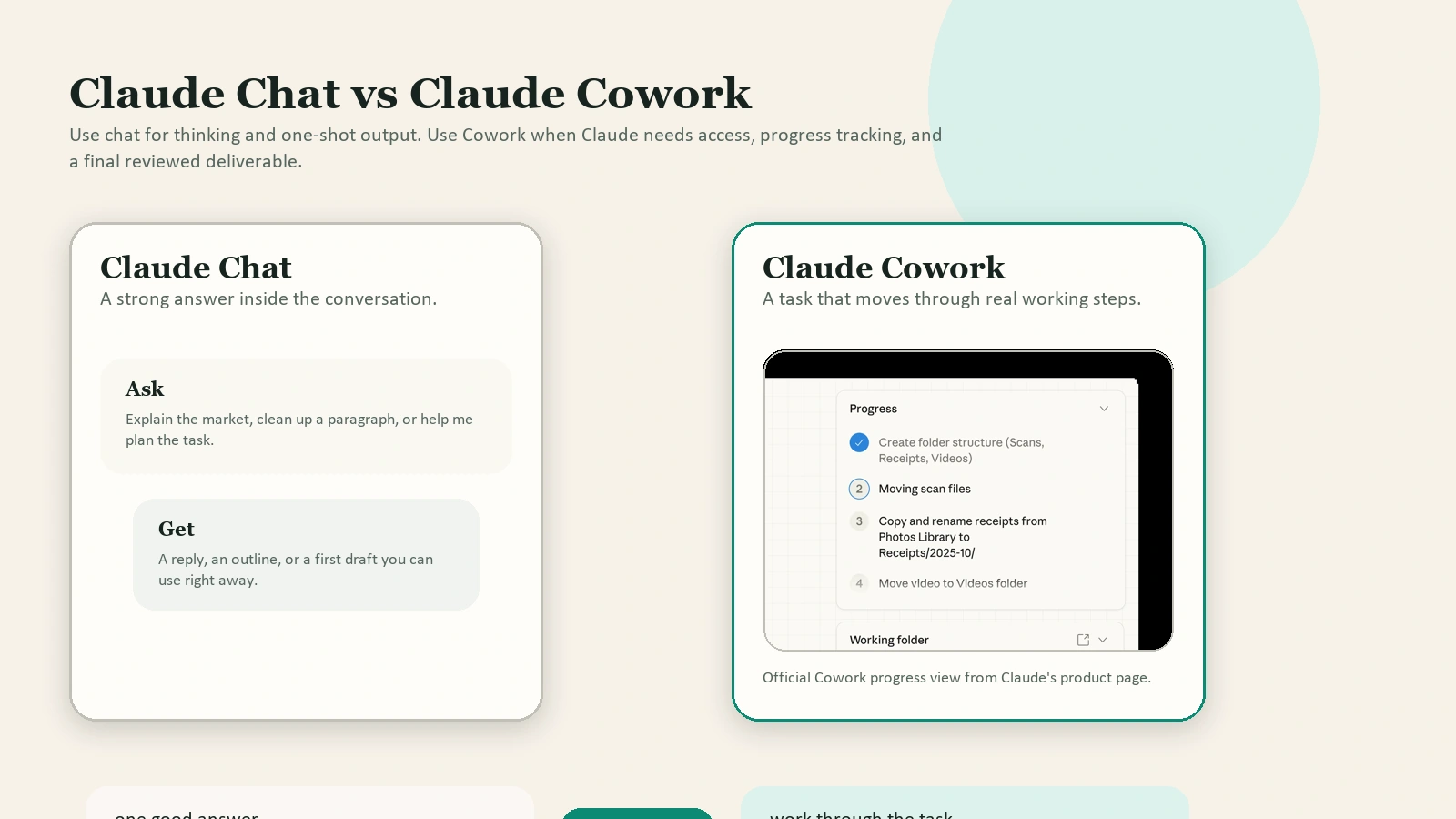
Caption: Use chat for answers. Use Cowork when Claude needs permission to work through files, tools, and multi-step tasks.
Claude Cowork vs Claude Chat
This is the main confusion beginners have, so it is worth making the distinction very clear.
Regular Claude chat is best when you want:
- explanation
- brainstorming
- rewriting
- planning
- quick one-shot answers
Claude Cowork is best when you want Claude to work across:
- local folders
- connected tools
- multiple steps
- longer-running tasks
- recurring or project-based workflows
Anthropic’s product page explains that regular chat responds to messages, while Cowork can read, edit, and create files inside folders you explicitly allow. That is the practical difference. Chat tells you what to do. Cowork can help do it.
Another useful distinction is that Cowork tries tools and integrations first. When Anthropic explains computer use in Cowork, it says Claude reaches for connectors and integrations first, falls back to the browser when needed, and uses your screen as a last resort. That hierarchy matters because it makes Cowork less like a screen robot and more like a permission-based desktop worker.
If your task can be answered in one good response, use chat. If your task needs access, files, iteration, and execution, use Cowork.
Who Should Use Claude Cowork?
Claude Cowork is a better fit for beginners than it first appears, especially if your work is more operational than technical.
Good beginner use cases include:
- marketers collecting source notes and shaping first drafts
- analysts reviewing folders of reports or exports
- founders preparing summaries before meetings
- team leads organizing recurring updates
- operators turning scattered documents into a single brief
Cowork is less useful when:
- you only need a quick answer
- you do not want to grant folder access
- the task is too sensitive to expose to an AI workflow
- the task is regulated and requires strict compliance controls
That last point matters. Anthropic says on the Cowork product page that Cowork is not suitable for HIPAA, FedRAMP, or financial-services regulated workloads. The Team and Enterprise guidance also notes that Cowork currently has important compliance and monitoring limitations during preview.
What Do You Need Before You Start?
Before you try your first Cowork task, make sure the basics are true.
As of April 9, 2026, Anthropic says Cowork is available on paid plans across:
- Claude Desktop for macOS
- Claude Desktop for Windows
- Pro, Max, Team, and Enterprise plans
For a real beginner setup, you only need four things:
- The latest Claude Desktop app.
- A paid plan that includes Cowork.
- One narrow folder you are comfortable granting access to.
- One concrete task with a clear output.
Do not start by giving Cowork your entire working drive. A tight folder is better than a wide one. Do not start with a vague request like “help with marketing.” A specific request is better, such as “review these five customer interview notes and create a one-page theme summary.”
How to Start With Claude Cowork
The getting started guide is the best official reference, but beginners benefit from a simpler operating sequence.
1. Choose one narrow workspace
Pick a folder that only contains the files relevant to one task. This reduces noise, lowers risk, and makes review easier.
Good examples:
- one campaign folder
- one research folder
- one meeting-prep folder
- one weekly reporting folder
Bad examples:
- your full documents directory
- a mixed folder with private and non-private material
- a folder that contains work Cowork should never touch
2. Give Claude one outcome
Your first task should have one deliverable. For example:
- “Review these meeting notes and create a one-page summary with the top 5 decisions.”
- “Read these source PDFs and create a markdown brief with the main findings.”
- “Check this folder and tell me which files are duplicates, outdated, or missing.”
This is where beginners often fail. They give Claude a goal that is too broad, then blame the tool for wandering. Cowork works better when the endpoint is obvious.
3. Define the quality bar
Tell Claude what success looks like:
- format
- length
- audience
- tone
- deadline
- what to exclude
Even a short constraint helps. “Write this for a non-technical team lead in bullet points, not paragraphs” is better than no instruction at all.
4. Review before acting
Cowork can create drafts and organize work, but you still own the decision to send, publish, or share. Review the output, check the facts, and verify that the file changes match your intent.
A Good First Beginner Workflow
If you want a low-risk way to learn Cowork, try a weekly summary workflow.
Here is a simple example:
- Put the week’s notes, exports, or docs into one folder.
- Ask Claude to review them and extract the top themes, decisions, blockers, and next actions.
- Ask for the result in one clean markdown file.
- Read the output yourself and revise anything that feels weak or overconfident.
Why this works well:
- the input is bounded
- the output is easy to verify
- the task is genuinely useful
- you can repeat it later as a recurring task
This also creates a natural bridge into scheduled recurring tasks in Cowork, which Anthropic now supports for ongoing workflows.
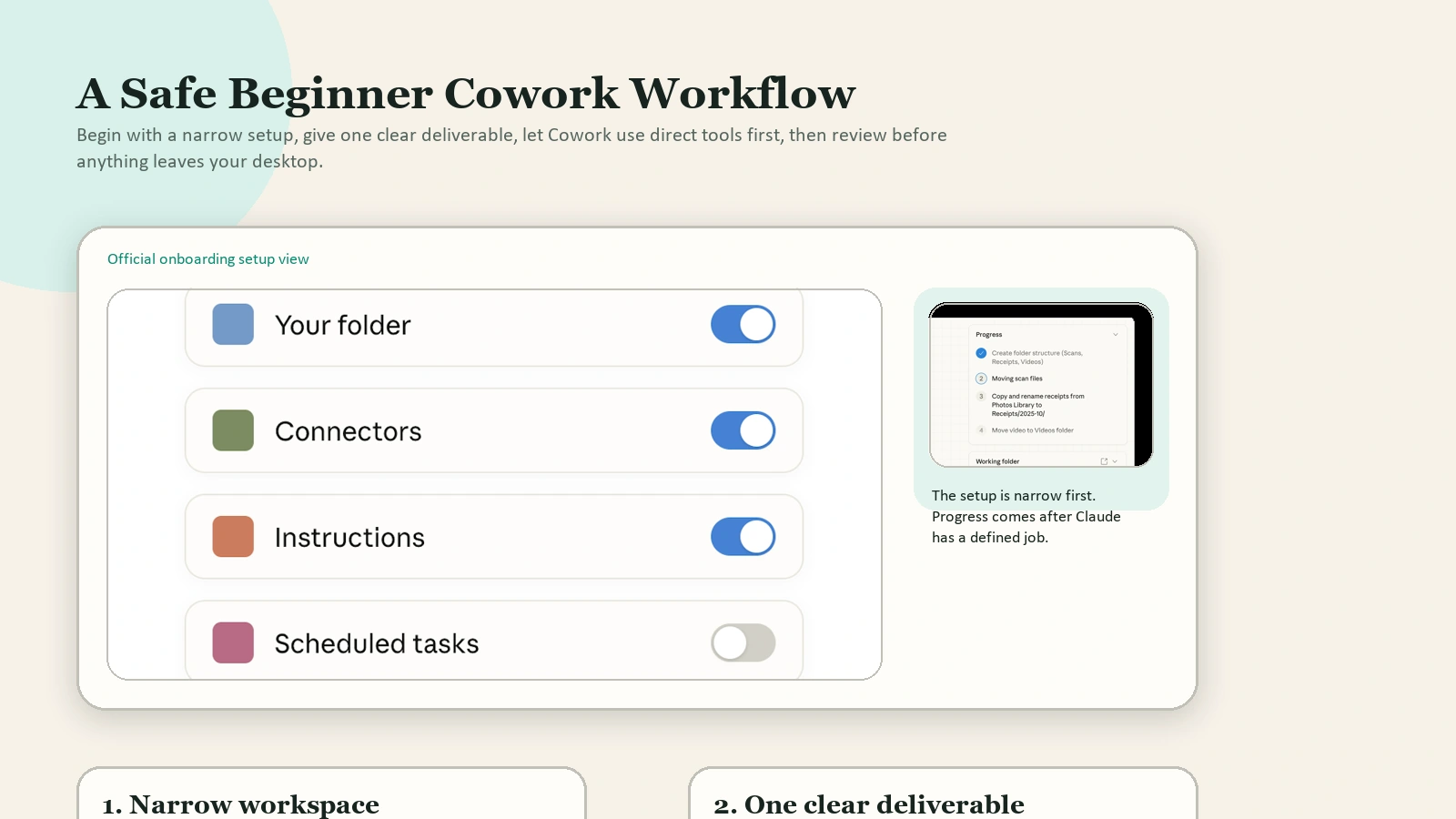
Caption: Start with a narrow folder, a clear task, and a human review step before you trust or publish the output.
How to Use Claude Cowork Safely
The official safety guide is required reading if you plan to use Cowork regularly. The short version is simple: treat access as the real risk surface.
For beginners, the most important safety rules are:
- grant only the folders you need
- avoid sensitive or regulated data
- watch for suspicious behavior or irrelevant detours
- prefer trusted sources when web access is involved
- review outputs before sending, publishing, or acting
Anthropic also warns Team and Enterprise users about prompt-injection risk in Cowork because it is agentic and can use the internet. In practical terms, that means Cowork can be nudged by external content if you give it too much freedom with the wrong task. The fix is not panic. The fix is scope.
Good scope looks like this:
- one folder
- one task
- one destination format
- one human reviewer
Bad scope looks like this:
- broad web research with no trusted-source boundary
- access to sensitive internal files
- automatic trust in whatever the system produces
Features to Explore After the Basics
Do not try every Cowork feature on day one. Start with folder-based tasks first. Then layer in advanced features when the basic workflow feels predictable.
Projects
Anthropic’s projects in Cowork guide describes projects as dedicated workspaces with their own files, links, instructions, and memory. This is the best next step after one-off tasks because it gives repeat work a stable home.
Recurring tasks
If you repeat the same summary, monitoring, or prep work every week, scheduled recurring tasks are a natural upgrade.
Plugins
Anthropic’s plugins article positions plugins as bundles of skills, connectors, and sub-agents for specific roles or workflows. That can be powerful, but it is not necessary for your first task. Beginners should earn their complexity.
Mobile task assignment
As of March 17, 2026, Anthropic says Pro and Max users can use a persistent thread to assign tasks to Claude from anywhere in Cowork, as long as the desktop app is running and the computer is awake. Useful, but only after your desktop workflow is stable.
Computer use
As of March 23, 2026, computer use in Cowork is in research preview. This lets Claude interact with your screen directly, but Anthropic says it asks permission before accessing each application and uses screen interaction only after trying direct integrations first. For beginners, this should be treated as an advanced feature, not the default mode.
Common Beginner Mistakes
Most Cowork frustration comes from workflow mistakes, not model failure.
Giving Cowork a task that should stay in chat
If you just want an explanation or a quick draft, chat is faster and simpler.
Granting too much access too early
Beginners often confuse more access with better results. Usually the opposite is true.
Starting with a vague prompt
Cowork works better with a defined output than a vague mission statement.
Skipping review
The output may look finished before it is actually reliable. Always check the final result.
Chasing every new feature at once
Projects, recurring tasks, plugins, mobile handoff, and computer use all have value, but none of them matter if your basic task design is weak.
FAQ
Is Claude Cowork still limited to Max on macOS?
No. That was true at launch on January 12, 2026, but it is outdated now. As of April 9, 2026, Anthropic says Cowork is available on paid plans in Claude Desktop for macOS and Windows, including Pro, Max, Team, and Enterprise contexts. Sources: release notes and Team/Enterprise availability guidance.
What is the biggest difference between Claude chat and Cowork?
Chat mainly responds to messages. Cowork can work through folders, files, tools, and multi-step actions you explicitly allow. If you need execution across several steps, Cowork is the better fit. If you only need a strong answer, chat is usually enough.
Can beginners use computer use right away?
They can, but they probably should not start there. Computer use is more powerful and riskier than a narrow folder-based task. Beginners learn faster by starting with a constrained workspace and a clear deliverable, then adding computer use later if the workflow genuinely needs it.
Is Claude Cowork safe for regulated or highly sensitive work?
Not by default. Anthropic explicitly says Cowork is not suitable for HIPAA, FedRAMP, or financial-services regulated workloads, and the preview still has compliance and monitoring limitations. If the work is highly sensitive, use a stricter process or keep it out of Cowork entirely.
Conclusion
Claude Cowork for beginners makes sense when you stop thinking of it as “better chat” and start thinking of it as “permission-based desktop work.” The safest entry point is small: one folder, one task, one output, one review step. Once that works, you can expand into projects, recurring tasks, plugins, or computer use without turning your workflow into chaos.
If you remember only one thing, remember this: the quality of a Cowork result depends as much on scope and review as it does on the model itself.
Suggested Internal Link Opportunities
- /blog/best-ai-tools-for-everyday-work
- /blog/how-to-write-better-ai-prompts
- /blog/how-to-use-ai-for-writing-and-editing
- /blog/how-to-use-ai-for-planning-and-summarizing
- /blog/how-to-review-ai-output-before-you-trust-it
Sources
- Cowork: Claude Code power for knowledge work
- Set up Cowork to work the way you do
- Release notes
- Get started with Cowork
- Use Cowork safely
- Let Claude use your computer in Cowork
- Schedule recurring tasks in Cowork
- Use plugins in Cowork
- Assign tasks to Claude from anywhere in Cowork
- Organize your tasks with projects in Cowork
- Use Cowork on Team and Enterprise plans